VAT and VAT Settlement
What is VAT, and how is it managed in Xena?
What is VAT?
VAT (Value Added Tax) is an indirect tax applied to goods and services when sold to consumers. VAT is paid by consumers, but it is businesses that collect the amount and subsequently remit it to the tax authorities.
VAT-registered businesses can deduct the VAT they pay on business purchases (input VAT) from the VAT they charge customers (output VAT). This is called VAT deduction and ensures that VAT is only paid on the business's added value.
To avoid fines or penalties, it is important to comply with applicable VAT regulations. For precise guidance, it is recommended to consult an accountant or contact the tax authorities.
VAT reconciliation
Before settling VAT, you can carry out a VAT reconciliation to ensure that posted amounts match expectations. Any discrepancies should be investigated.
➡️ Read about how to verify the amounts on the VAT settlement
Via ledger report
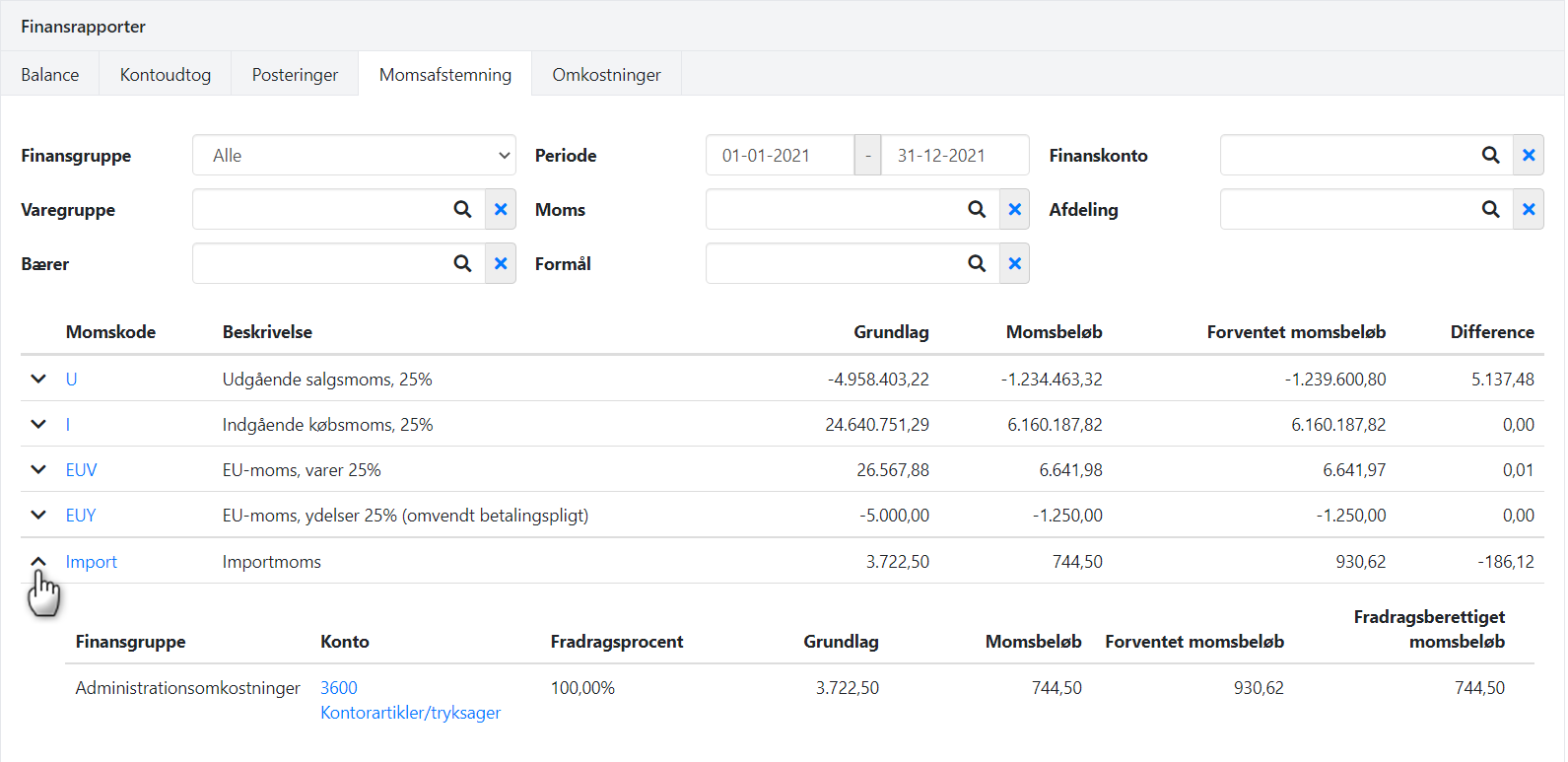
Go to Ledger > Ledger reports and select the VAT reconciliation tab.
Enter the desired period.
Expand the VAT codes to see expected and posted VAT amounts per ledger account.
Print the report to get a detailed overview of amounts and any discrepancies.
Via VAT code
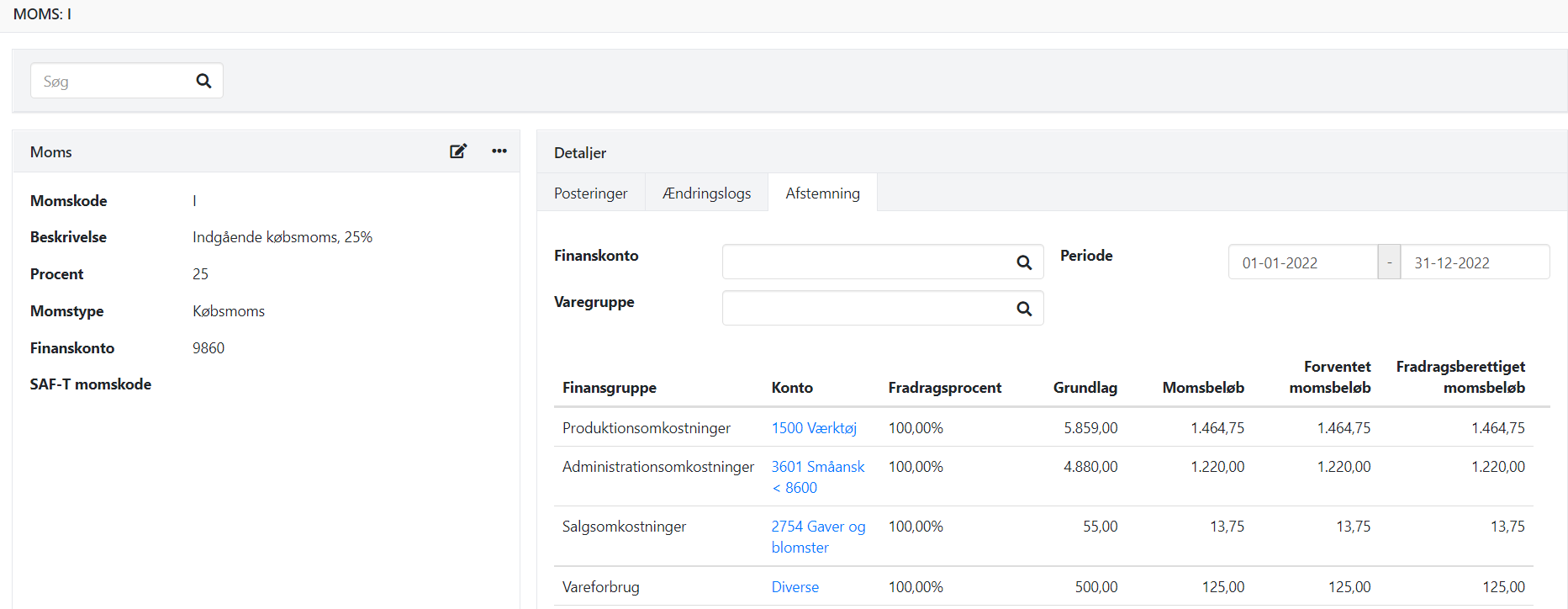
Open a VAT code by clicking on the code in the report above.
Select the Reconciliation tab.
Enter the period.
View a summary of VAT amounts for each account.
Create a ledger account for manual VAT
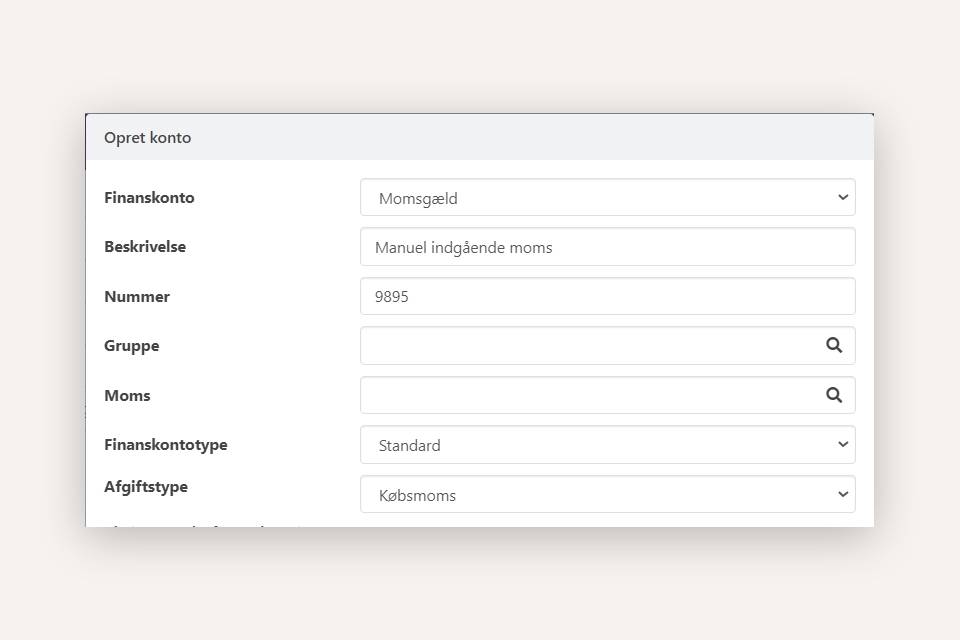
In Xena, VAT codes and rates are flexible and can be changed. If you want to post manual VAT, you must first create a separate ledger account.
Go to Ledger > Account overview > Account overview.
Select Liabilities at the top and expand the VAT payable group.
Click Create.
Enter account number and description (leave the VAT code field empty).
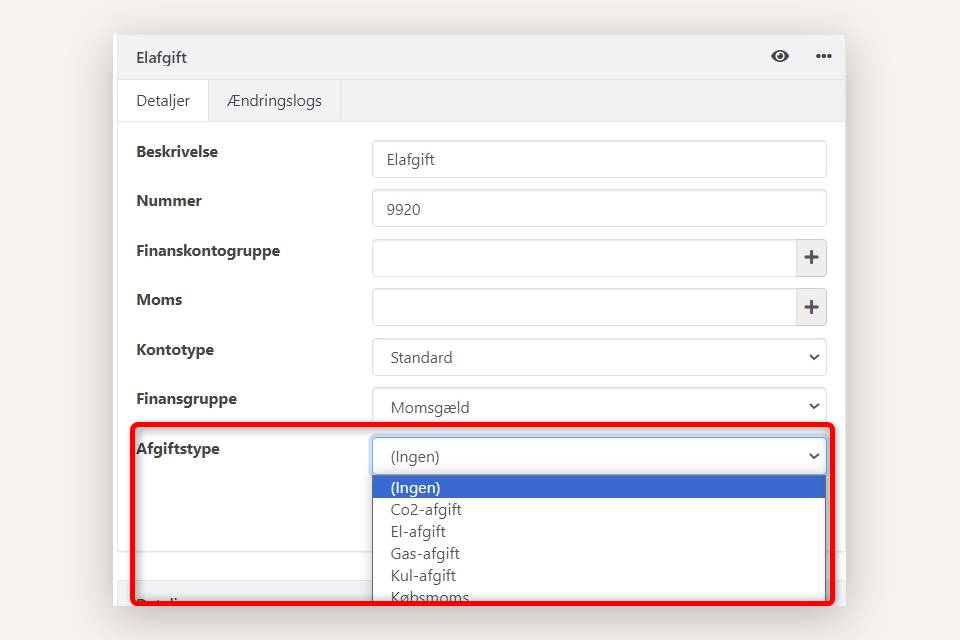
Select a relevant Tax type (required for transfer to the tax authorities).
The account can now be used in the ledger entry for manual VAT postings.
Post VAT settlement
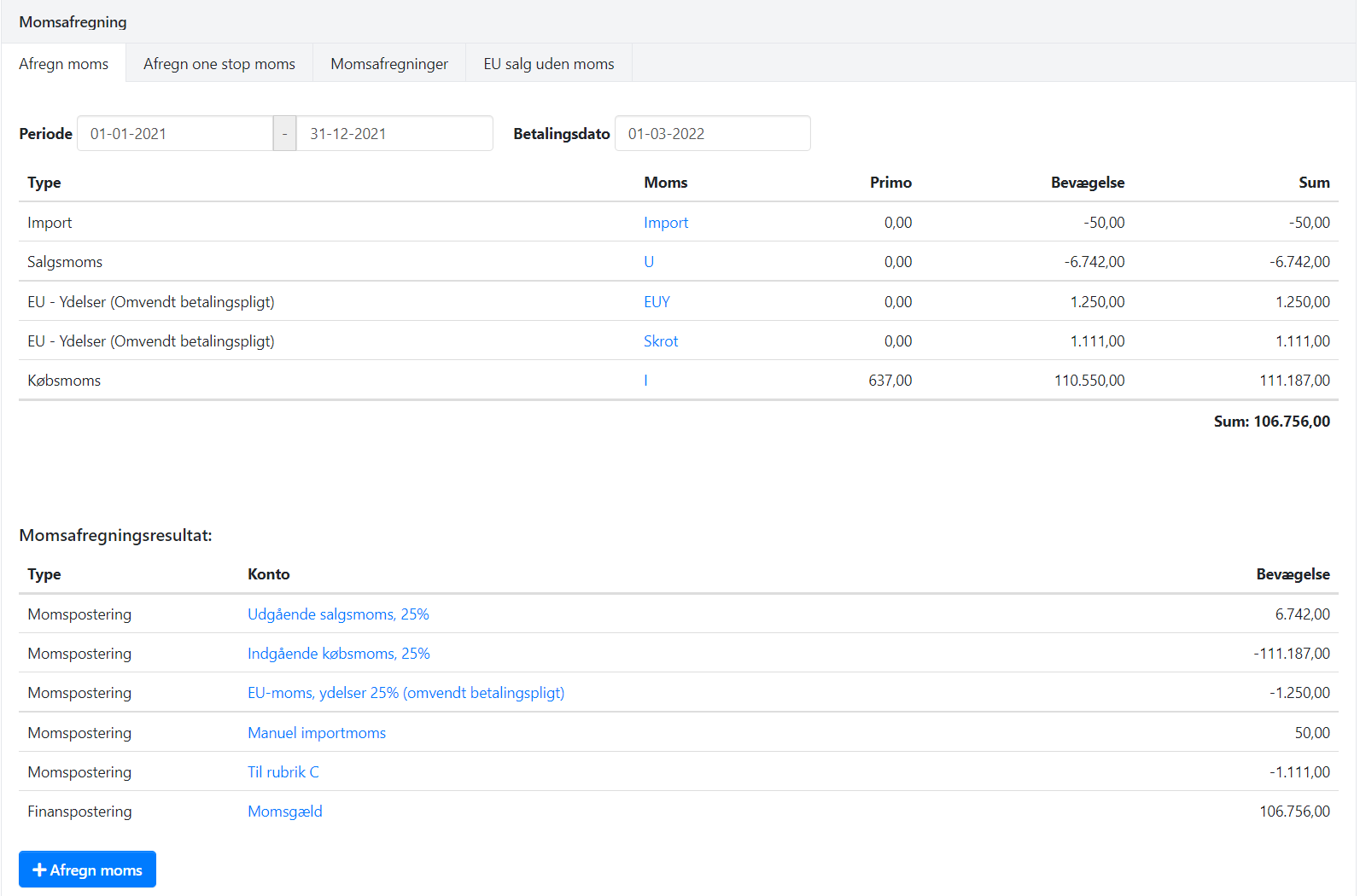
Go to Ledger > Vat > Vat settlement and select the Settle VAT tab.
Enter the period to be settled.
Check the payment date (can be edited later).
Verify the displayed VAT figures.
Click Settle VAT to create postings and print the report.
⚠️ Note: Always recalculate primo postings before settling VAT!
The system posts the VAT settlement per VAT code, while the total sum is posted to the VAT payable account.
After VAT settlement
Remember to report the VAT settlement to the tax authorities.
Lock the period you have settled to prevent further VAT postings in that period.
Reopen the period if you cancel a previous VAT settlement.
➡️ Read more about accounting periods
Report VAT settlement to the tax authorities
If you want to report VAT settlements electronically to the tax authorities directly from Xena, you need to grant Xena permission to report via your profile.
Select tax types on accounts
If you have created ledger accounts in the VAT payable group, you must select a tax type for each of these accounts if you want to send VAT settlements directly to the tax authorities.
Open the menu Ledger > Account overview > Account overview.
Select the Liabilities group.
Expand the VAT payable group.
Find the account and select Go to ledger account.
Click the edit icon and select the relevant Tax type.
⚠️ Note: The default VAT payable account has no menu and cannot be changed. Skip this one.
Transfer to the tax authorities
Once you have completed the preparations above, you are ready to send your posted VAT settlement to the tax authorities.
Find the posted VAT settlement under the VAT settlements tab.
Open the menu (the three dots) and select Send VAT settlement to the tax authorities.
If the submission is rejected, an error code and description are shown directly in Xena so you know exactly what to correct before trying again.
When the submission is sent without errors, you receive a link in Xena. Click the link to open the tax authority portal and approve the VAT return.
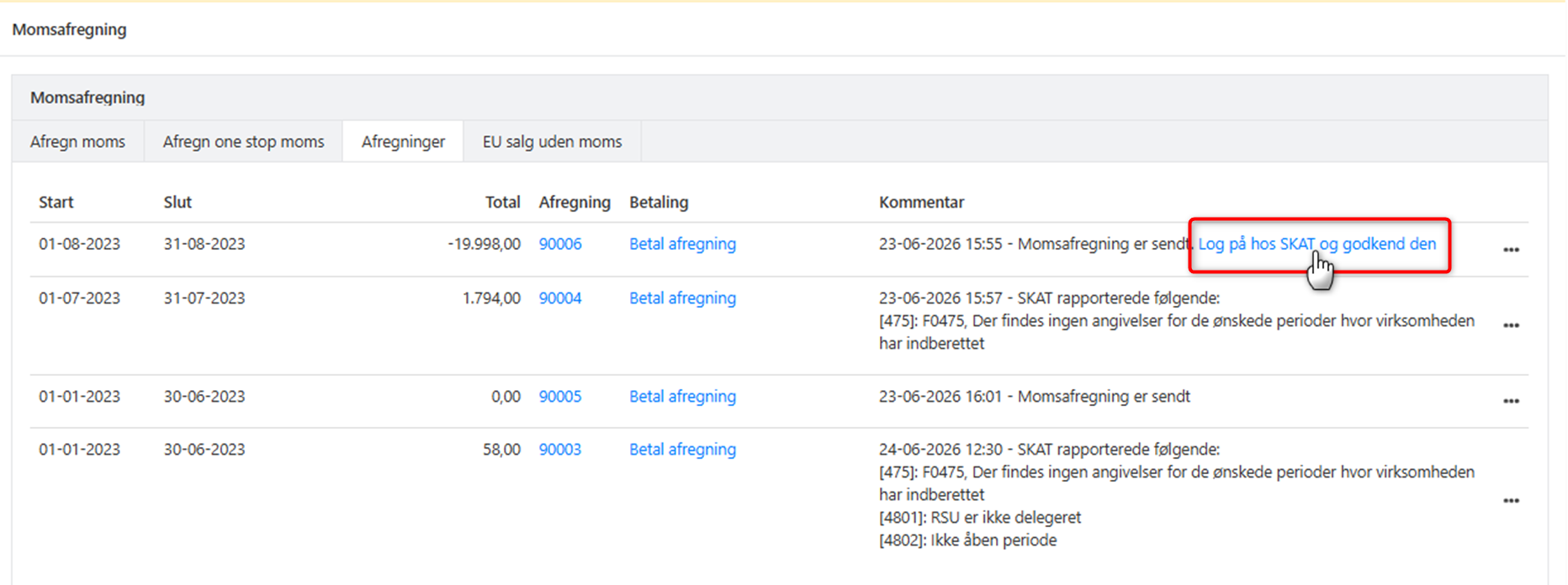
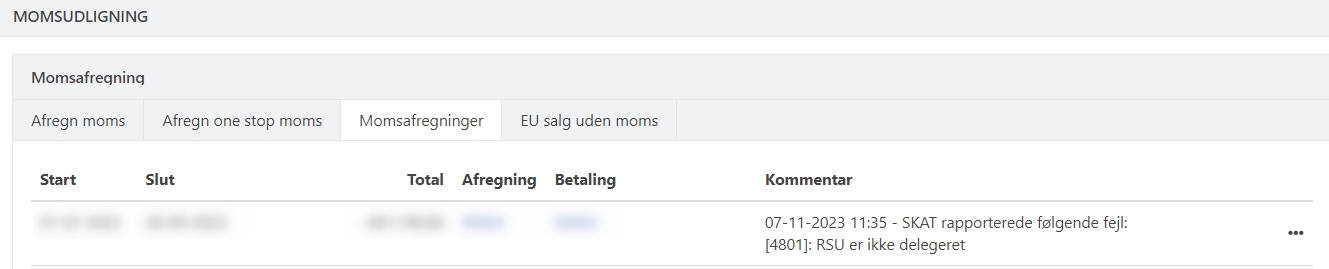
If you receive an access error, you have most likely not yet activated Xena with the tax authorities. Follow the guide described above and try again.
Reprint or cancel settlement
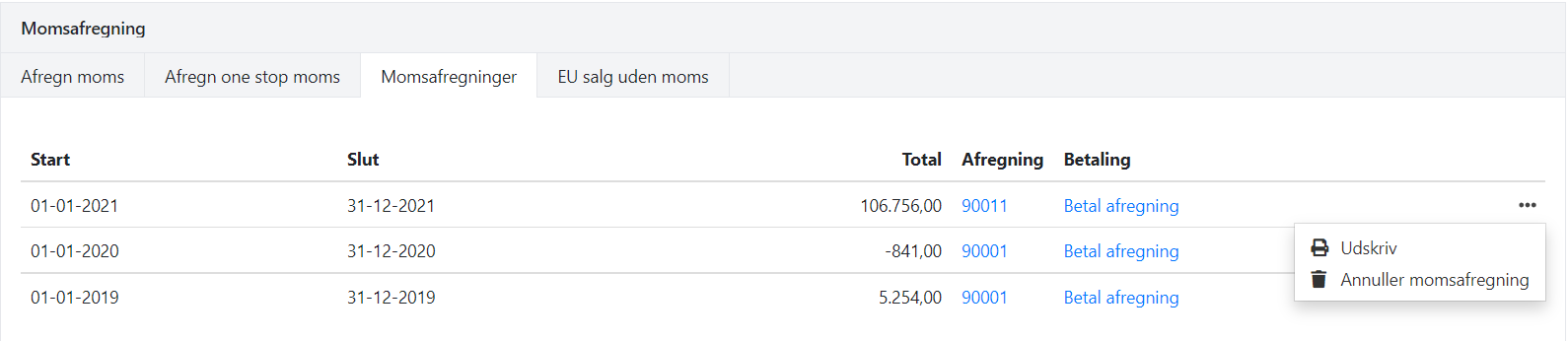
You can find all previous VAT settlements on the posted voucher:
Go to Ledger > Vat > Vat settlement.
Select the VAT settlements tab.
Here you can reprint or cancel a settlement.
⚠️ Note: Settlements must be cancelled in chronological order (most recent first).
List reporting of VAT-exempt EU sales can be found under the EU sales without VAT tab.
Pay VAT settlement
When your VAT payment is due, either by making a payment to the tax authorities or when they have deposited money into your account, post the VAT as paid as follows:
Go to Ledger > Vat > Vat settlement and select the VAT settlements tab.
Click Pay settlement for the relevant entry.
Enter payment date and payment account.
Click Settle VAT to post the payment.
The payment is automatically offset against VAT payable, which is thereby reset to zero.
- Updated