Partners – customers and suppliers
In Xena, all relationships – including customers, suppliers, debtors, creditors, and employees – are referred to as partners. These are managed collectively in the partner registry.
Create partner
You can create a new partner in the following situations:
Via a sales or purchase order
During voucher registration
In the menu Sales/Purchase > Partner > Create partner
By clicking the +-icon in the top right corner of the top bar
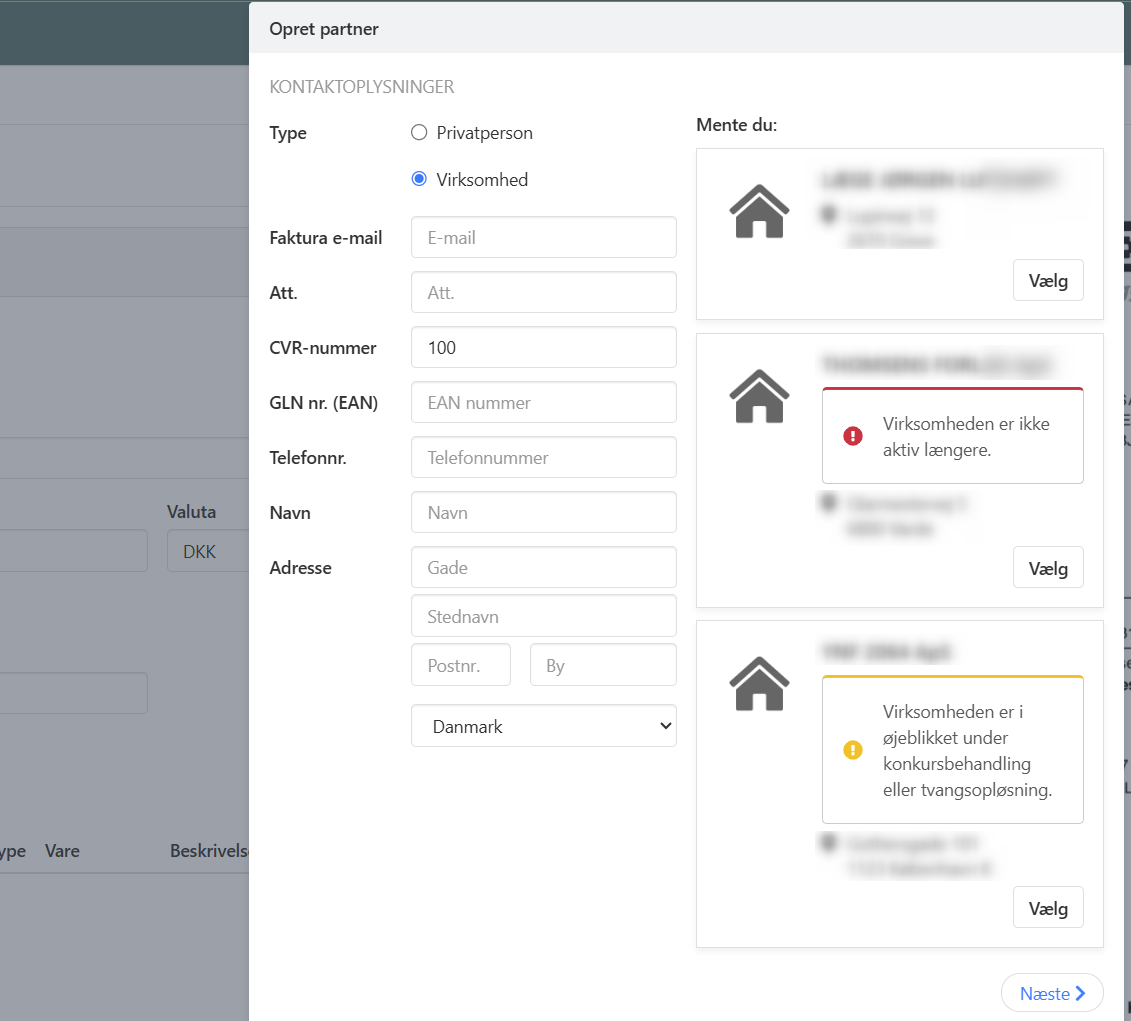
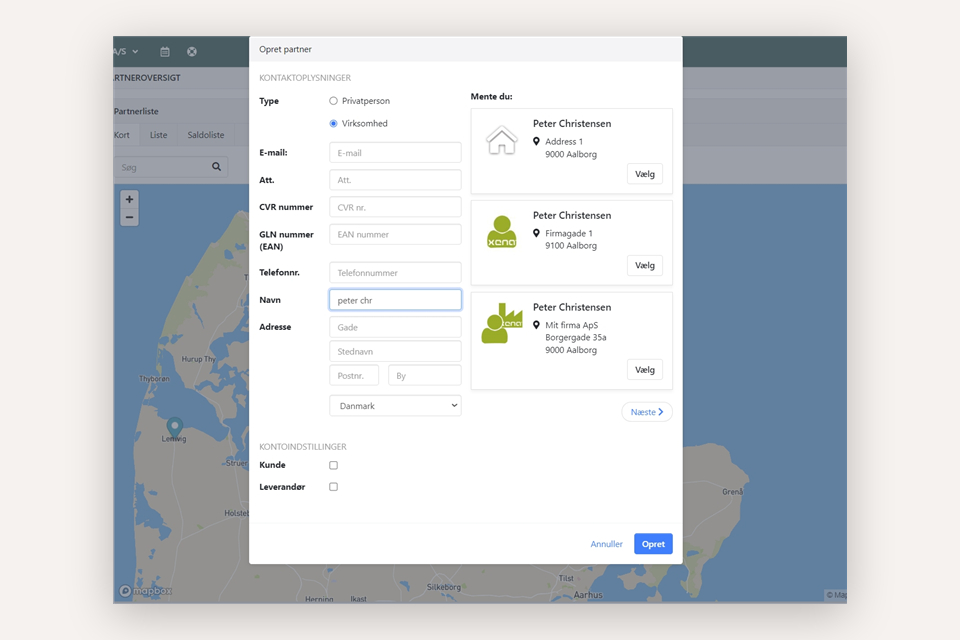
When you create a partner, you can search directly in the CVR (Denmark) or Brreg (Norway) register. Simply start entering information — the system suggests relevant companies on the right side of the dialog box. Select the desired partner, review the details, and click Create.
If the company you looked up is undergoing bankruptcy or forced closure, or has already been dissolved, Xena shows a clear warning in the suggestion list, so you can decide whether you still want to create the partner:
Yellow warning: the company is undergoing bankruptcy or forced closure
Red warning: the company has been dissolved or deleted
When creating a supplier, you can also add payment details at the bottom of the form. These must be filled in if you want to use the payment function later.
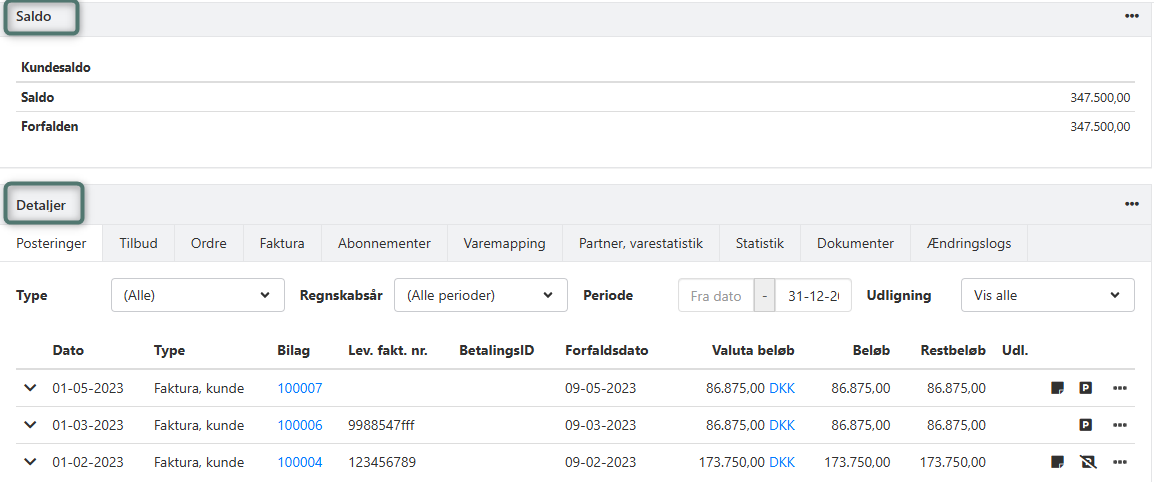
Saldo and Details
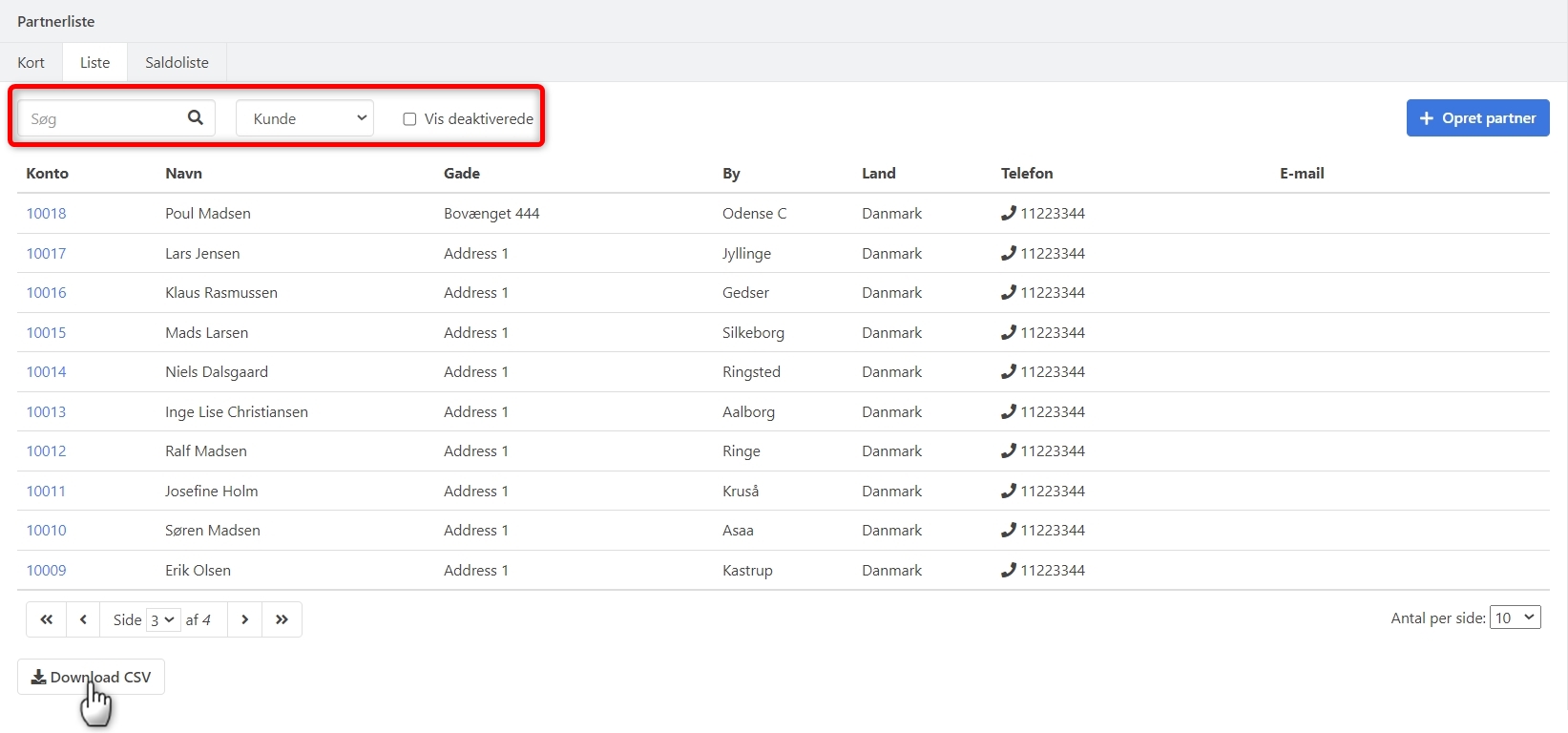
Once the partner has been created, it can be accessed via Sales/Purchase > Partner > Partner overview. This overview contains three tabs — select List to see a combined overview of name, address, etc.
Click the partner's account number to open the partner card and view or edit all the details.
Saldo
Here you see the partner's current balance and any overdue amounts. Via the menu (the three dots), you can:
Register payments
Settle entries
Print account statements
➡️ Read more about saldo on partners
Details
This section contains tabs with the partner's entries,offers, orders, invoices, documents, etc.
➡️ Read more about details on partners
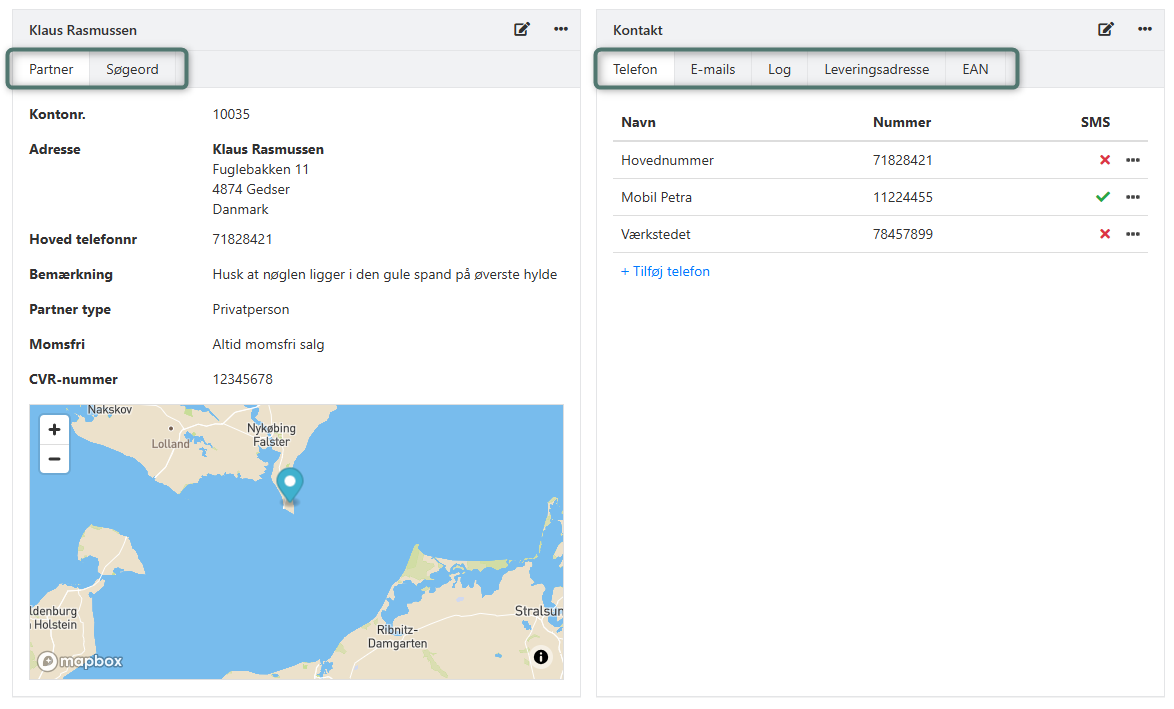
Name and address
You can edit the partner's name and address at any time. If you change, for example, the address, and the changes should apply to the partner's open orders, you must press the Tab key after your last edit. Xena will then ask whether the open orders should be updated.
You can also add:
Main phone no.:
Shown on orders where the partner is added as a customer or supplier.
Note:
Internal note shown on orders where the partner is added as a customer or supplier.
Company registration number:
During voucher registration, the company registration number is used to identify the supplier. Make sure to:
Only enter a company registration number on the partners that voucher registration should be able to identify
Delete the company registration number if you deactivate the partner
GLN number (EAN):
Enter the customer's EAN number here if you send electronic invoices. If the customer has multiple EAN numbers, you create the rest in the Contact > EAN box.
➡️ Read about electronic invoices
Partner type:
Private individual: Prices are also shown incl. VAT per order line
Company: Prices are only shown excl. VAT per order line
VAT exempt:
Tick this box if sales to this customer should always be posted without VAT.
Merge partners
If you have created the same partner twice, you can merge the two records.
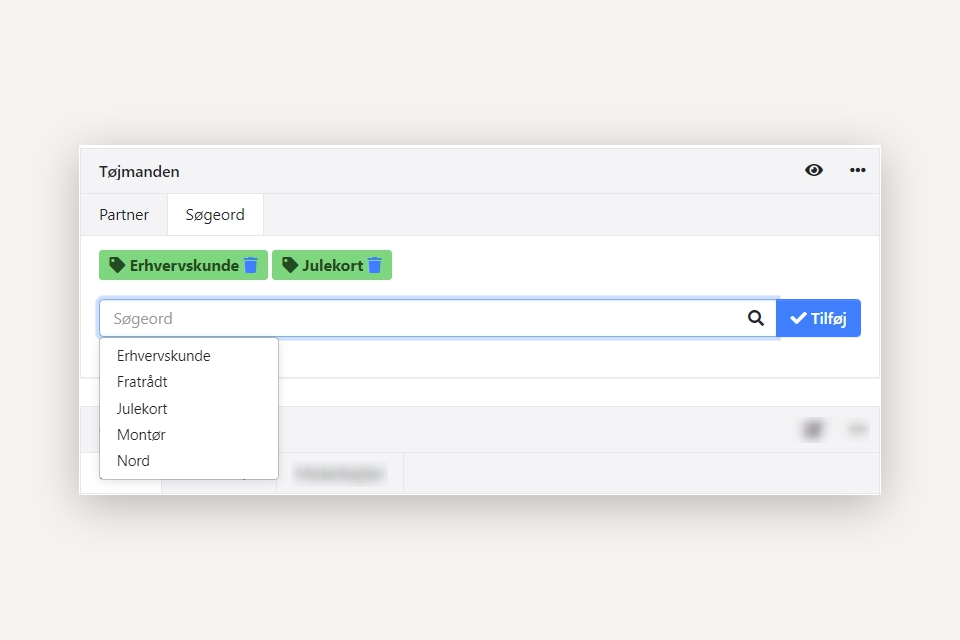
Tags
You can add tags (keywords) to a partner and use them to filter in lists and reports.
Contact
In the Contact box, you can view and edit a range of additional information about the partner.
Phone:
Create additional phone numbers for the partner.
E-mails:
Maintain the partner's e-mail addresses. The addresses are suggested in e-mail dialogs related to the partner. E-mails sent to addresses created here are automatically logged under the Log tab.
Log:
Shows a log of e-mails sent to the partner's registered e-mail addresses.
➡️ Read more about logs and e-mails on the partner
Delivery address:
Create additional delivery addresses that you can choose between on orders linked to this partner. For each delivery address, you can add an internal note, which is also shown on the Delivery tab on orders.
EAN:
If you send electronic invoices to this partner, you can create a list of EAN numbers here to choose between.
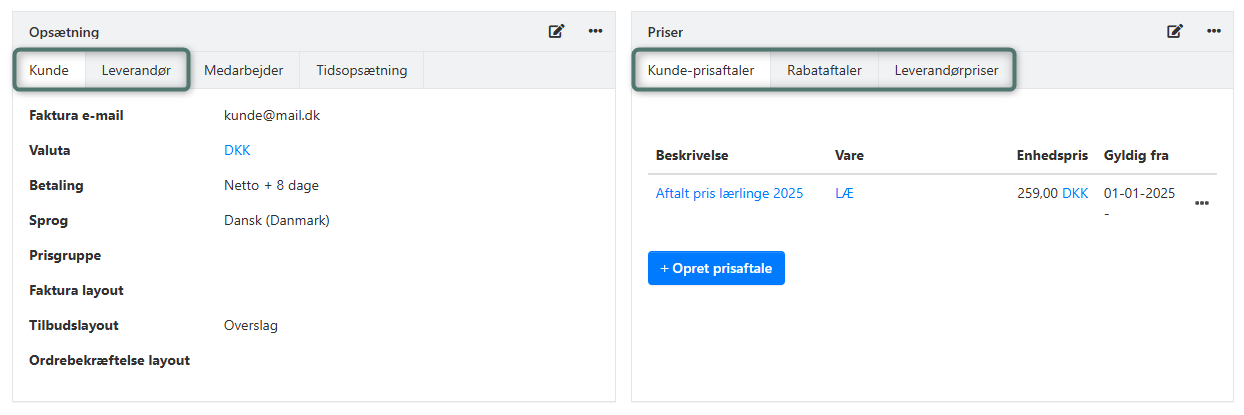
Customer setup
Select currency, payment terms, and language for this customer's invoices. You can also set up:
Invoice e-mail:
Enter the customer's primary invoice e-mail address.
Price group:
You can create price groups with fixed prices and discounts that are automatically calculated on orders where this partner is added as a customer.
➡️ Read more about the price module
Report layouts:
If you have your own customized reports (e.g. invoice and quote), you can select a different layout than your default report for this customer.
➡️ Read more about customizing reports
Supplier setup
Select currency, payment terms, and language for this supplier's invoices. You can also set up:
Invoice e-mail:
Enter the supplier's primary invoice e-mail address. This is also suggested when you send orders to the supplier.
Default account/default VAT:
When you post vouchers via voucher registration, you can save the posting as default on the supplier. You can edit it here. Note that the VAT setup follows the selected finance account and cannot be changed separately here.
Report layouts:
If you have your own customized reports, you can select a different layout than your default report for this supplier.
Default approver:
If you use approval of order costs on vouchers, you can select a fixed approver here. Vouchers posted on this supplier are always sent to the user you select here — regardless of who the order responsible is.
Default cost type:
If you post order costs via voucher registration, you can select the cost type that should be suggested on invoices from this supplier here.
Prices
Here you can create or select price agreements and discount agreements related to the partner. These are used when order lines are created for the partner, either via a purchase or a sales order.
➡️ Read more about the price module
Download partners as a CSV file
In the menu Sales/Purchase > Partner > Partner overview, you can download a list of partners as a CSV file. The download button is located at the bottom of the overview.
The filters you select at the top of the overview also determine what is exported to the file.
- Updated