Resign or rehire a user in Xena
Please follow this guide if you have an employee who has either left your company or needs to be rehired.
When an employee with access to Xena leaves your company, you have the option to:
Keep the user in the fiscal, but with a deactivated status
Remove the user entirely from the fiscal. You can re-invite the user later
Both methods are described in this guide. At the bottom, you can also read how to rehire a user, depending on which method you used when they left.
Preparations
If you remove or deactivate a user in your fiscal, it may affect your access to data linked to that user. If the user is e.g. responsible for orders and/or projects, this information is retained, but you can no longer select the deleted user in filters for responsible persons.
Before you delete/deactivate the user, you should therefore review ongoing orders/projects and change the responsible to another active user.
If the user has vouchers in voucher registration, this prevents deletion of the user. Make sure the user has approved all vouchers, or move them to another responsible/approver.
Approve open registrations
Before an employee is deactivated/deleted, you must also ensure that all of the user's registered order costs are approved:
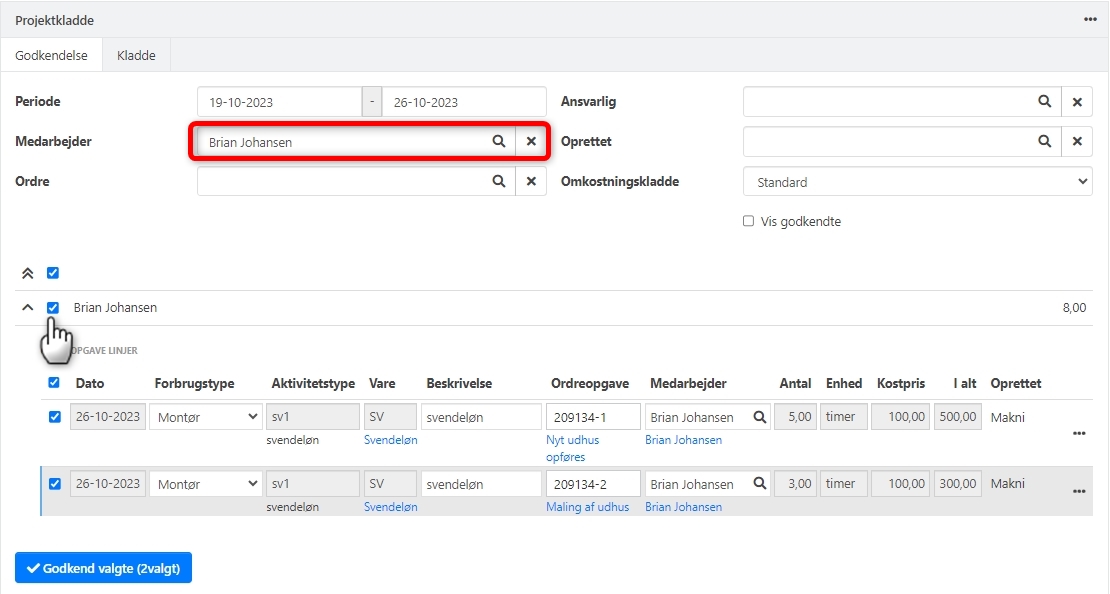
Open the menu Project/Sales > Cost Registration and select the Approval tab
Adjust the date filter to make sure you can see all registrations that have not yet been approved
Select the employee in the filter at the top
Review the lines, select them and click Approve selected
Add a tag to the user
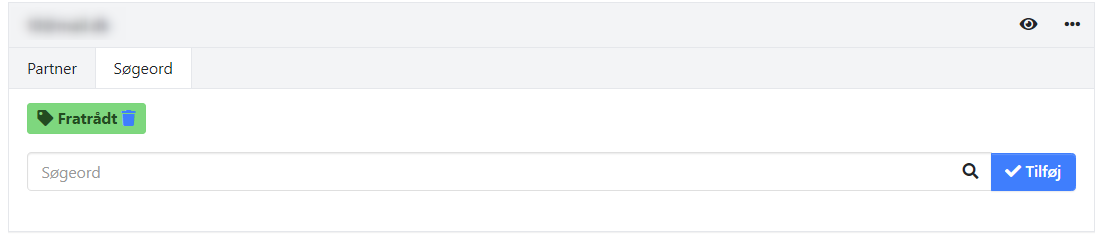
To be able to filter the employee out in e.g. the project report Employee Costs, you can add a tag to the employee:
Go to Setup > Company > Users and select the employee in the overview
In the section with the user's name, select the Tags tab
Click the edit icon and type the tag Departed
Click Add
Next time you create an employee, the tag Departed will automatically appear in the list of existing tags.
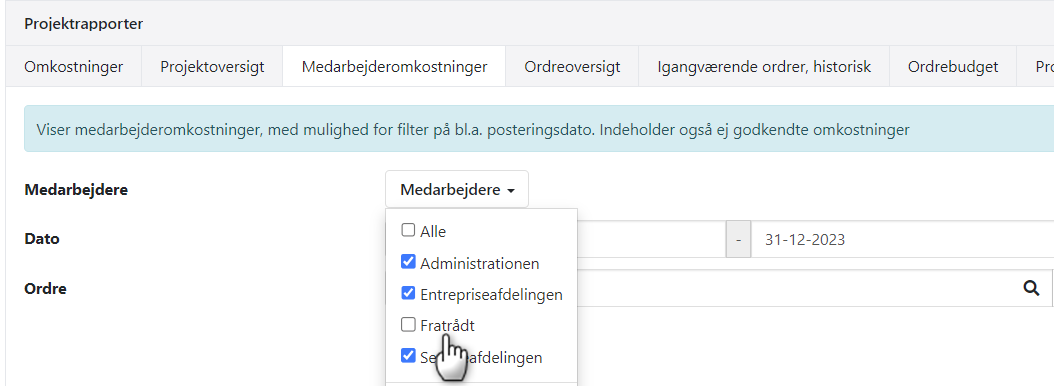
In the project report Employee Costs, you can now filter out the departed employees.
Departure, method 1: Deactivate the user
Step 1: Adjust apps
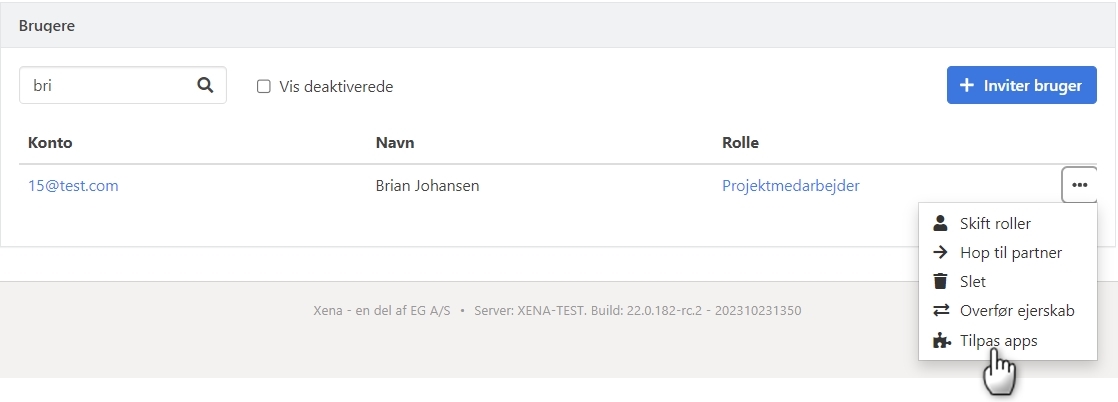
Open the menu Setup > Company > Users
Click the three dots next to the user and select Customise apps
Remove the tick next to all apps
Click Edit to save
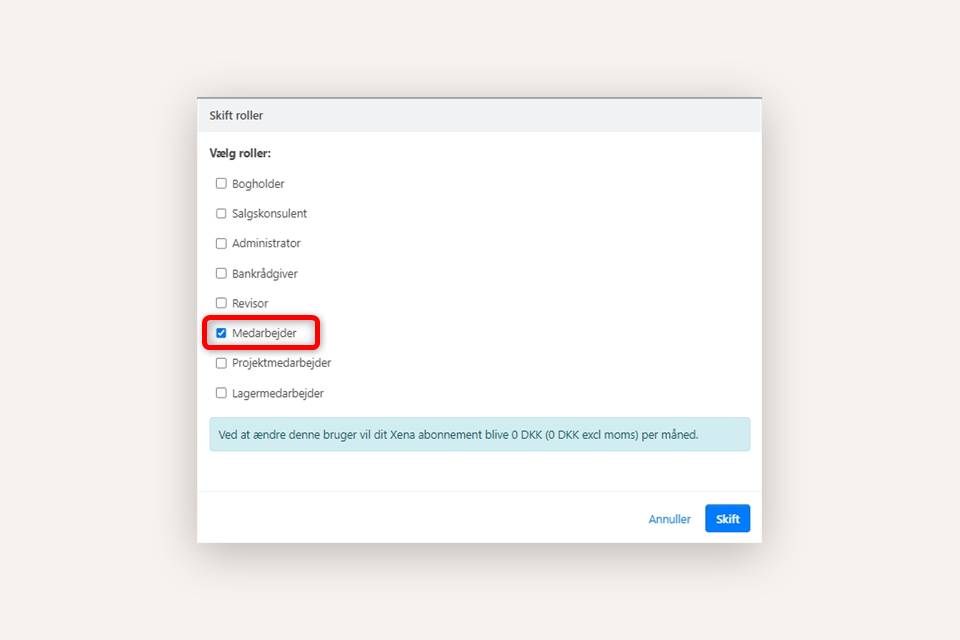
Step 2: Change role
Go back to the menu Setup > Company > Users
Click the three dots next to the user and select Change roles
The user should only have the Employee role
Click Change to save
The Employee role is a free role and only gives the user access to their own profile. No data in your fiscal can be accessed with this role.
Step 3: Deactivate the user
Go to Setup > Company > Users and select the employee in the overview
Click the three dots next to the user and select Go to Partner
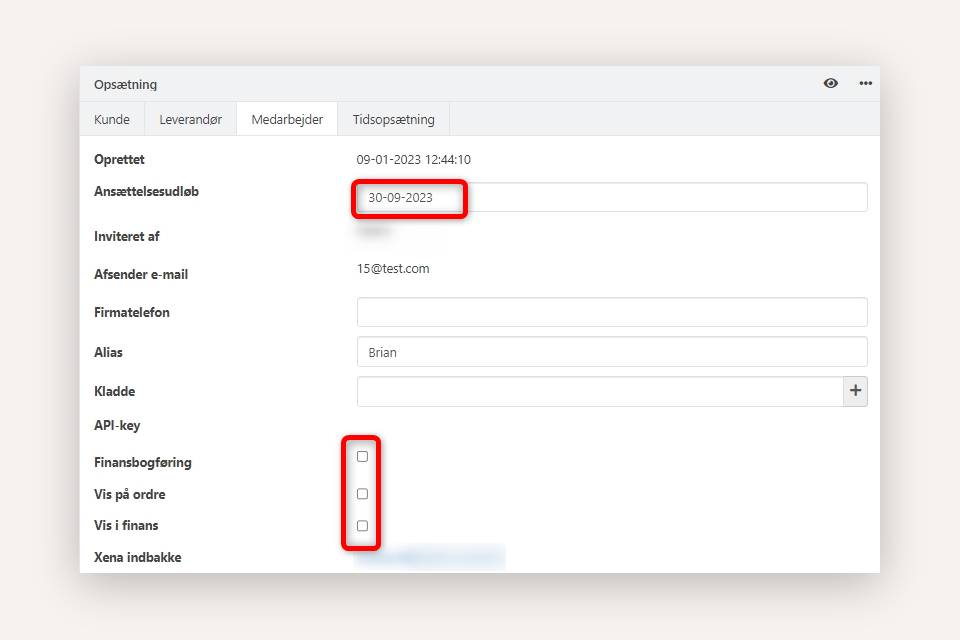
In the Setup section, select the Employee tab
Click the edit icon in the top right corner to see all settings
Enter the departure date in the Employment end field
Remove the tick for access to the modules as shown below
The user is now considered deactivated in your fiscal. To find the user in the user overview going forward, you must tick that you also want to see deactivated users.
Departure, method 2: Delete the user
You can alternatively choose to delete the user entirely from your fiscal. The user is however still retained as a partner in your fiscal, so if you later re-invite the same user with the same email address, the user will be linked to the original partner.
Go to Setup > Company > Users
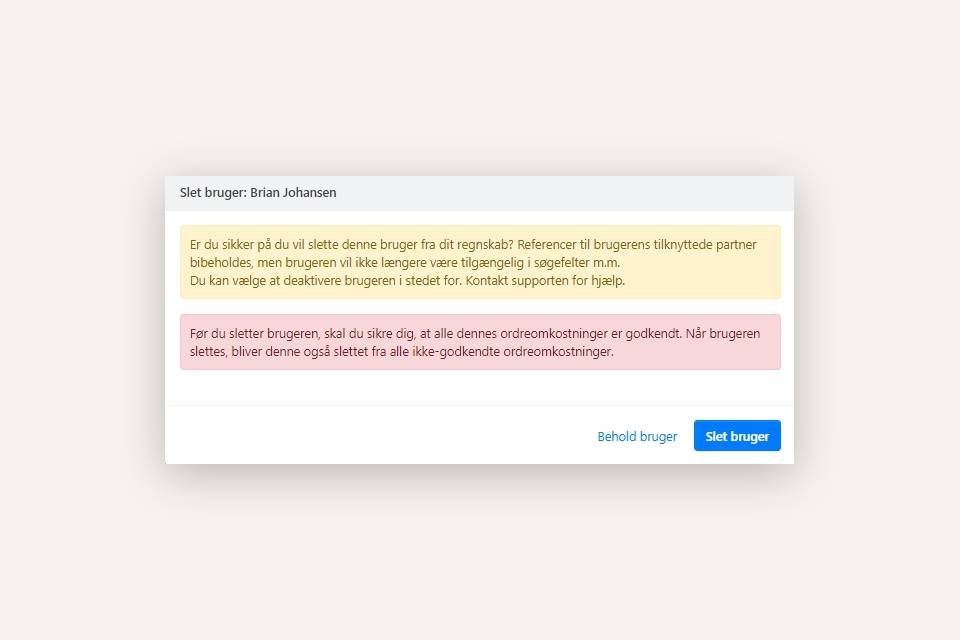
Click the three dots next to the user and select Delete
A dialog box will appear informing you of what will be affected when the user is deleted
If you accept this, click Delete user
Note: The user is only removed from the current fiscal. The user's profile is not deleted. As long as the user's Xena profile exists, the user can later be re-invited to your fiscal with the same email address and will simply be reactivated on the previous partner.
When the user has been deleted, you can still find the associated partner via Sales > Partner > Partner Overview. Select type = Employee and search for the user's name.
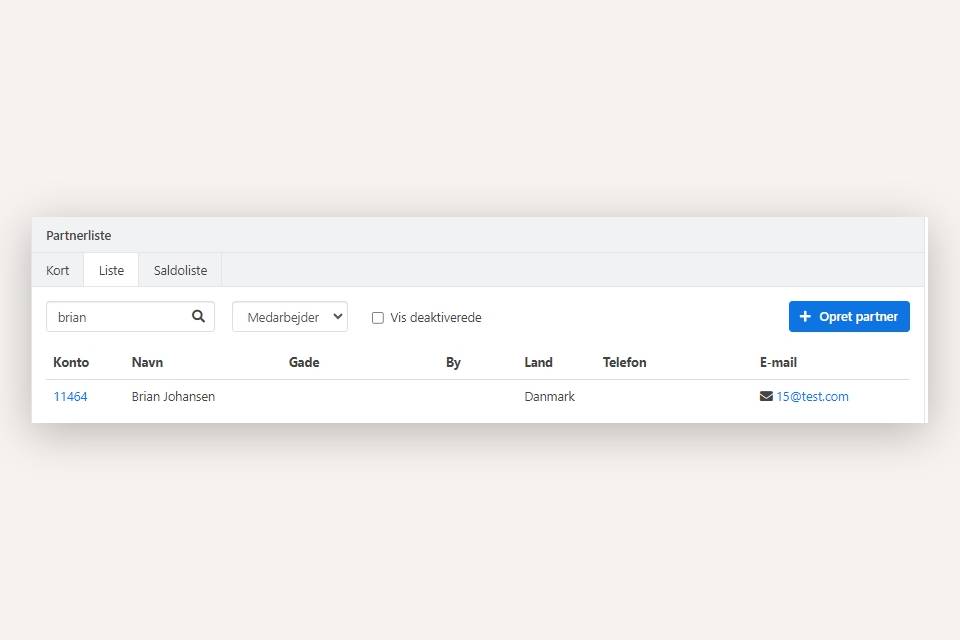
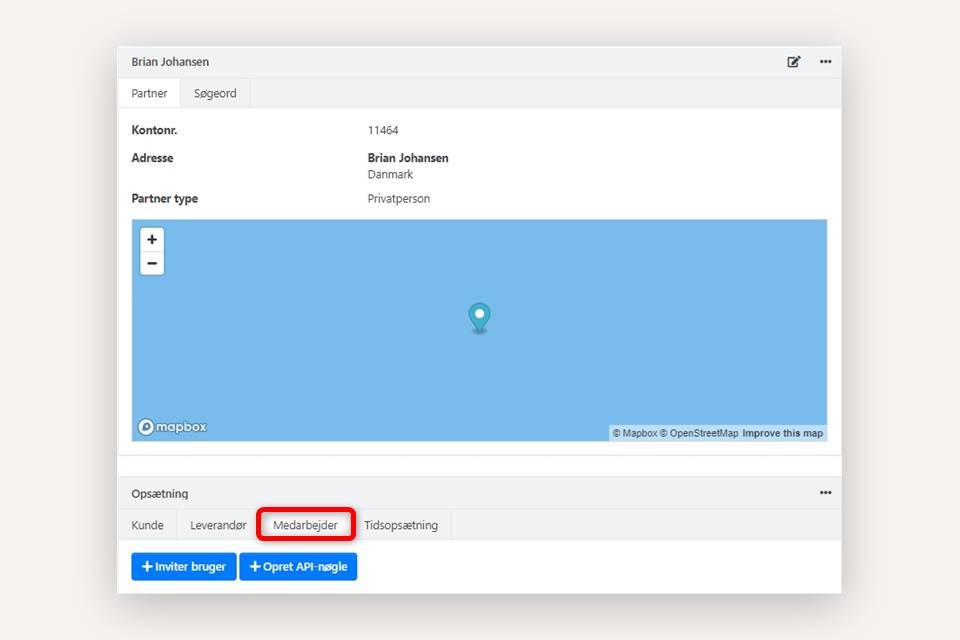
Open the partner
In the Setup section, select the Employee tab
Since the associated user has been deleted from the fiscal, you no longer have access to the employee details
Rehire, method 1: Activate the user
If you used method 1 when the user departed, you need to remove the departure date, change the role and add apps when rehiring.
The user can log in with their previous password, or reset it using the "Forgot Password" function on the login screen.
Step 1: Rehire the user
Go to the menu Setup > Company > Users
Tick the field Show deactivated to see the departed users
Open the employee you want to rehire
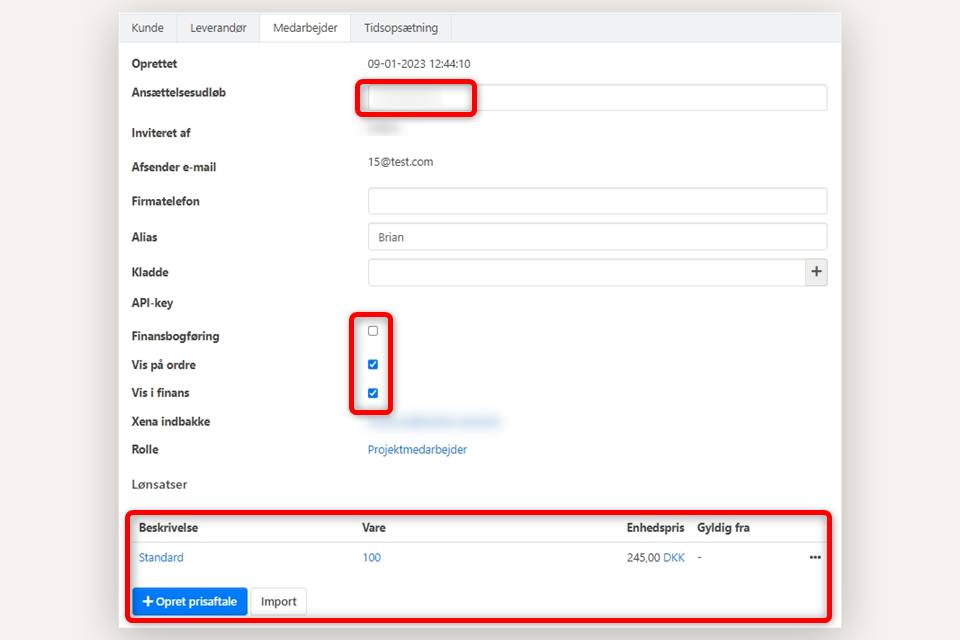
In the Setup section, select the Employee tab
Click the edit icon in the top right corner to see all settings
Delete the date in the Employment end field
Select the modules the user should have access to:
Financial posting: Should the user be able to post financial entries
Show on order: Should the user be able to create orders and/or be set as responsible on orders
Show in ledger: Should the user's Xena inbox be activated
Remember to review the user's prices from the last time they were employed.
Step 2: Adjust roles and apps
Go to the menu Setup > Company > Users
Click the three dots next to the user and select Change roles
Select the desired role
Click Change to save
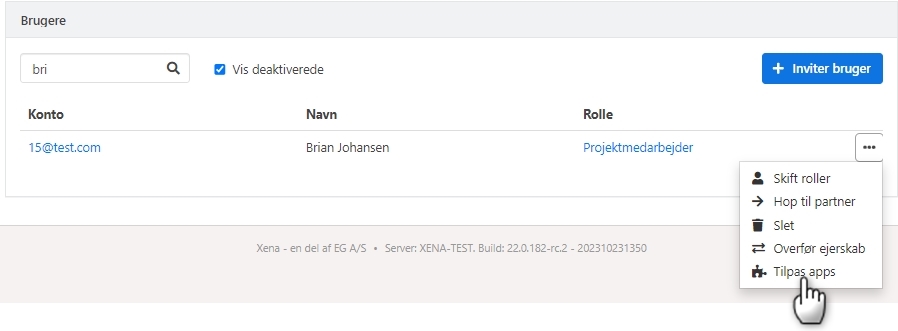
Click the three dots next to the user again and select Customise Apps
Select the desired apps for the user
Click Edit to save
Rehire, method 2: Invite the user
If you used method 2 when the user departed, you simply need to re-invite the user using the old email address. You invite the user in the usual way via the menu Setup > Company > Users, click the button Invite user.
Note: The user does not receive the activation email, but can log in using their previous password, or reset it via the "Forgot Password" function on the login screen.
When the user is re-invited to your fiscal with the old email address, all employee details on the user's partner from before are reactivated.
The date in Created is the original date from when the user was first created in the fiscal
The date in the Employment end field is deleted
Modules are automatically selected based on the role the user was invited with
The Xena inbox email address remains the same as before
Previously created pay rates on the employee are reactivated — remember to review the rates
- Updated