Dimensions
In Xena, you can create Departments, Bearers, and Purposes to give your financial entries and orders an extra dimension.
Dimensions make it possible to add an extra layer of detail to your accounts, making it easier to analyse and report data according to specific criteria.
The primary purpose of dimensions is to allow you to filter queries and reports so you only see postings or orders linked to a specific dimension. This is useful when you want to analyse activity by department, cost centre, or purpose.
Creating and setting up dimensions
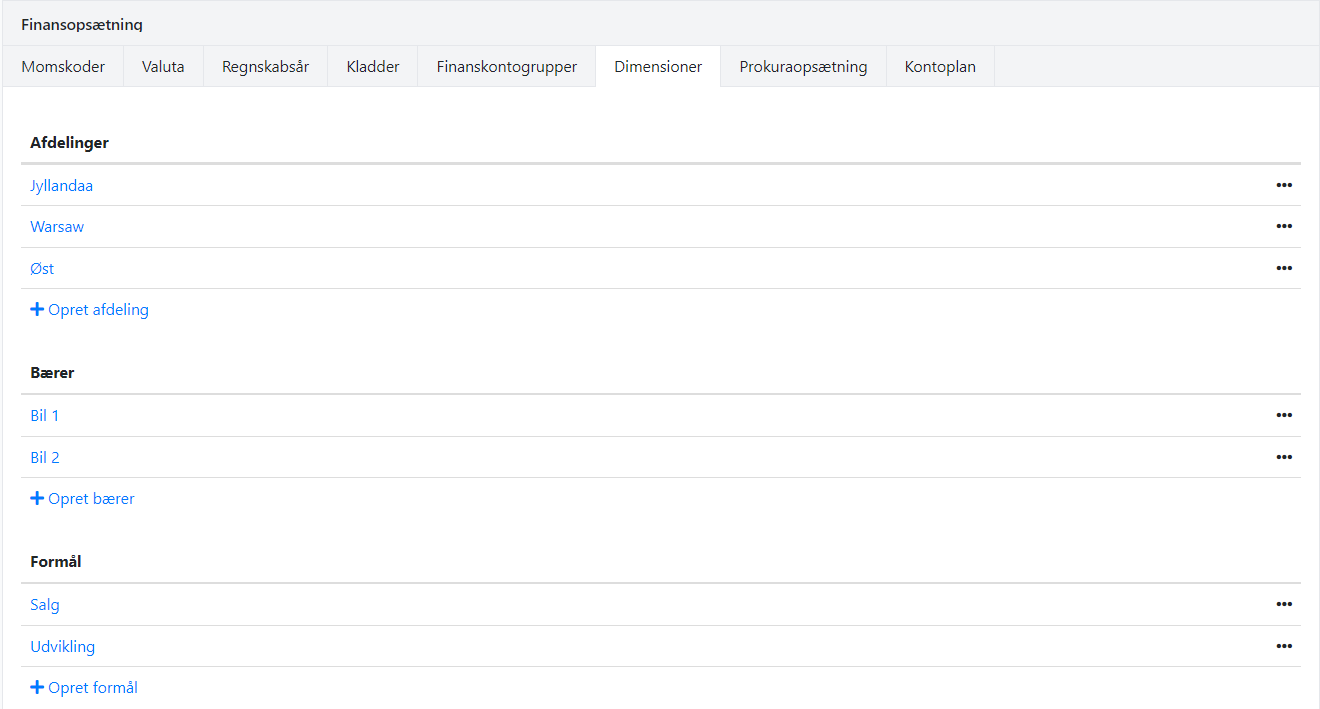
Dimension values are created via the menu Setup > Ledger setup > Dimensions. For each dimension you can create an unlimited number of values. Examples include:
Department: North, South, Head Office
Cost centre: Project A, Project B, Internal activity
Purpose: Marketing, Product development, Consulting services
⚠️ Note: If you delete a dimension value, it is automatically removed from all posted entries and orders, and all setup related to the value is deleted.
Tip: Instead of deleting an unused value, you can rename it to e.g. Unused – North. This preserves the history and makes it clear the value is no longer in active use.
Dimensions on ledger accounts
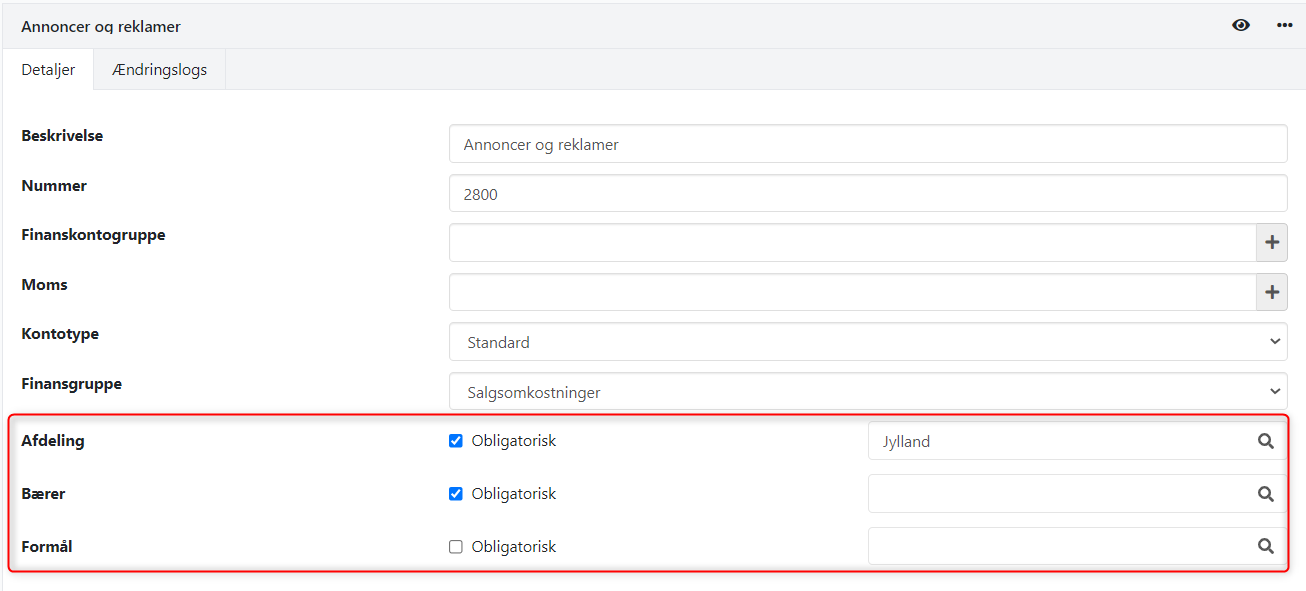
On ledger accounts you can choose whether a dimension or a specific dimension value should be mandatory. This ensures that users cannot post without selecting a dimension if one is required.
To set up dimensions on accounts:
Go to the account overview.
Click the menu (the three dots) next to the account.
Select Go to ledger account.
Click the edit icon to open the dimension setup.
Example setup as shown below:
Department: Mandatory, and only North can be selected.
Cost centre: Mandatory, but the user can freely choose from available cost centres.
Purpose: Not mandatory, optional for the user.
Dimensions on article groups
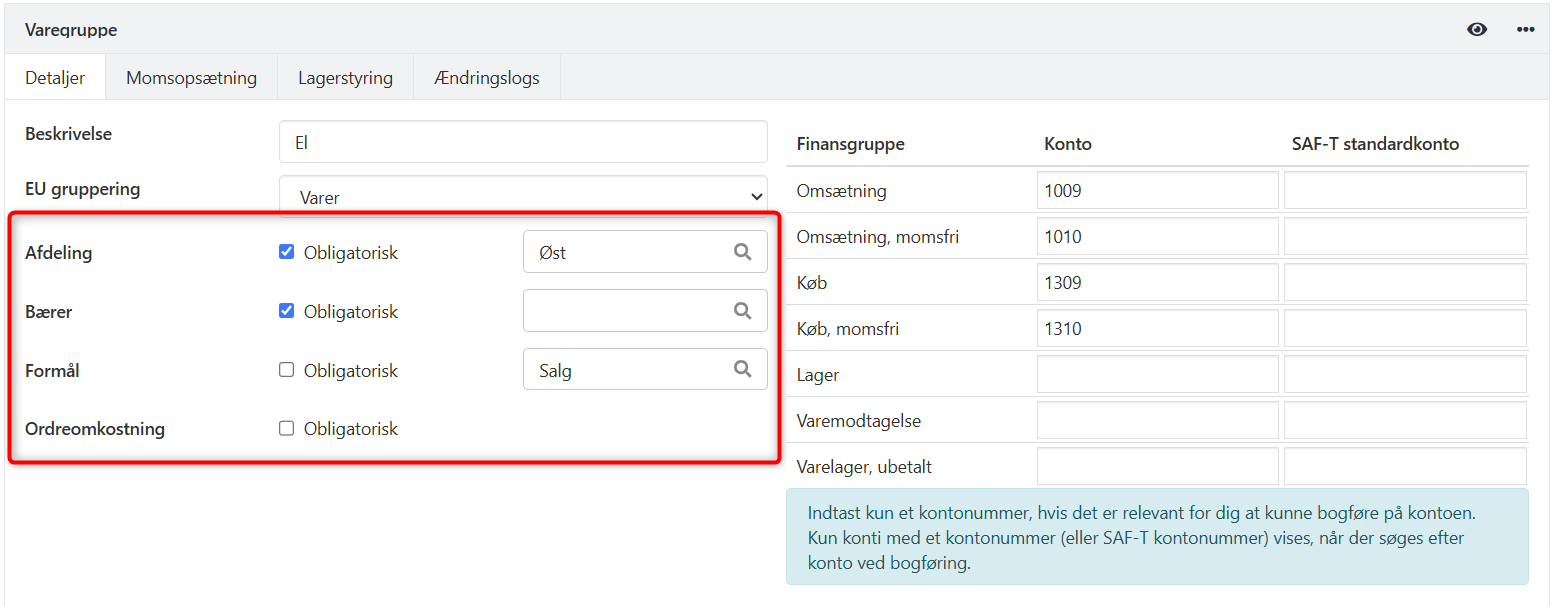
You can also make dimensions mandatory on article groups — in the same way as on ledger accounts. This means you can require that Department, Cost centre, and/or Purpose are filled in when posting on a line with that article group.
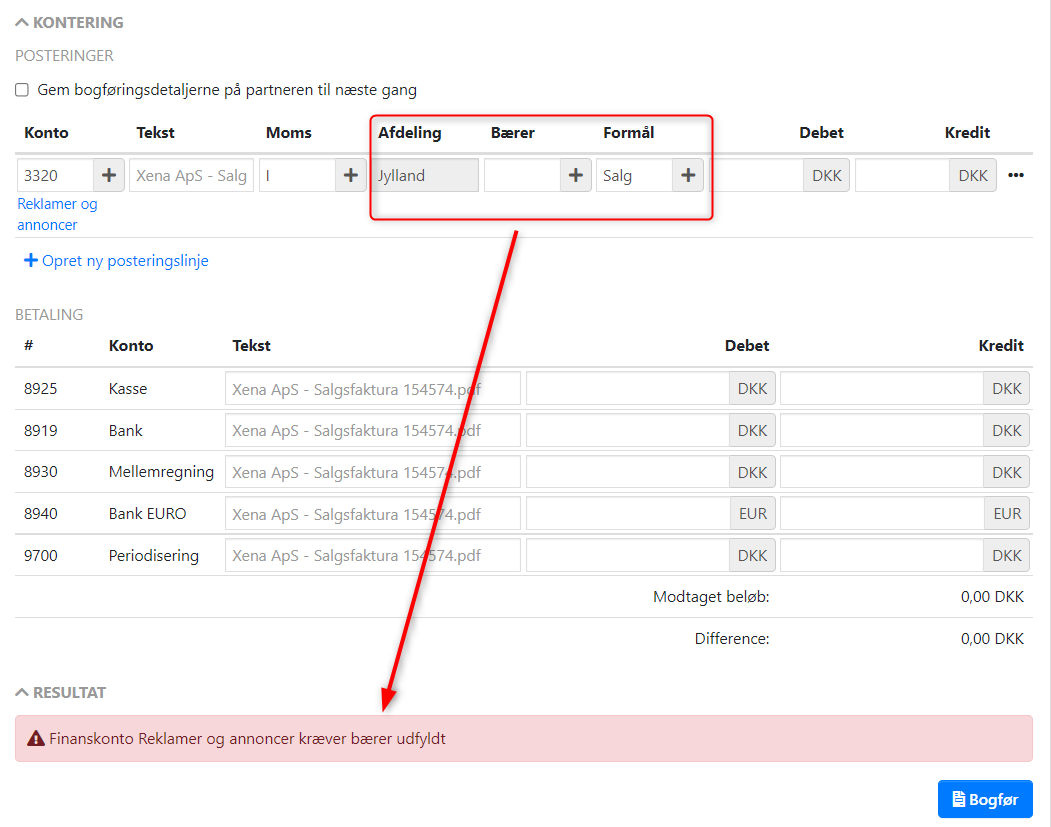
If a required dimension is missing, a warning is displayed and the voucher cannot be posted until the information has been filled in.
Requires order cost posting
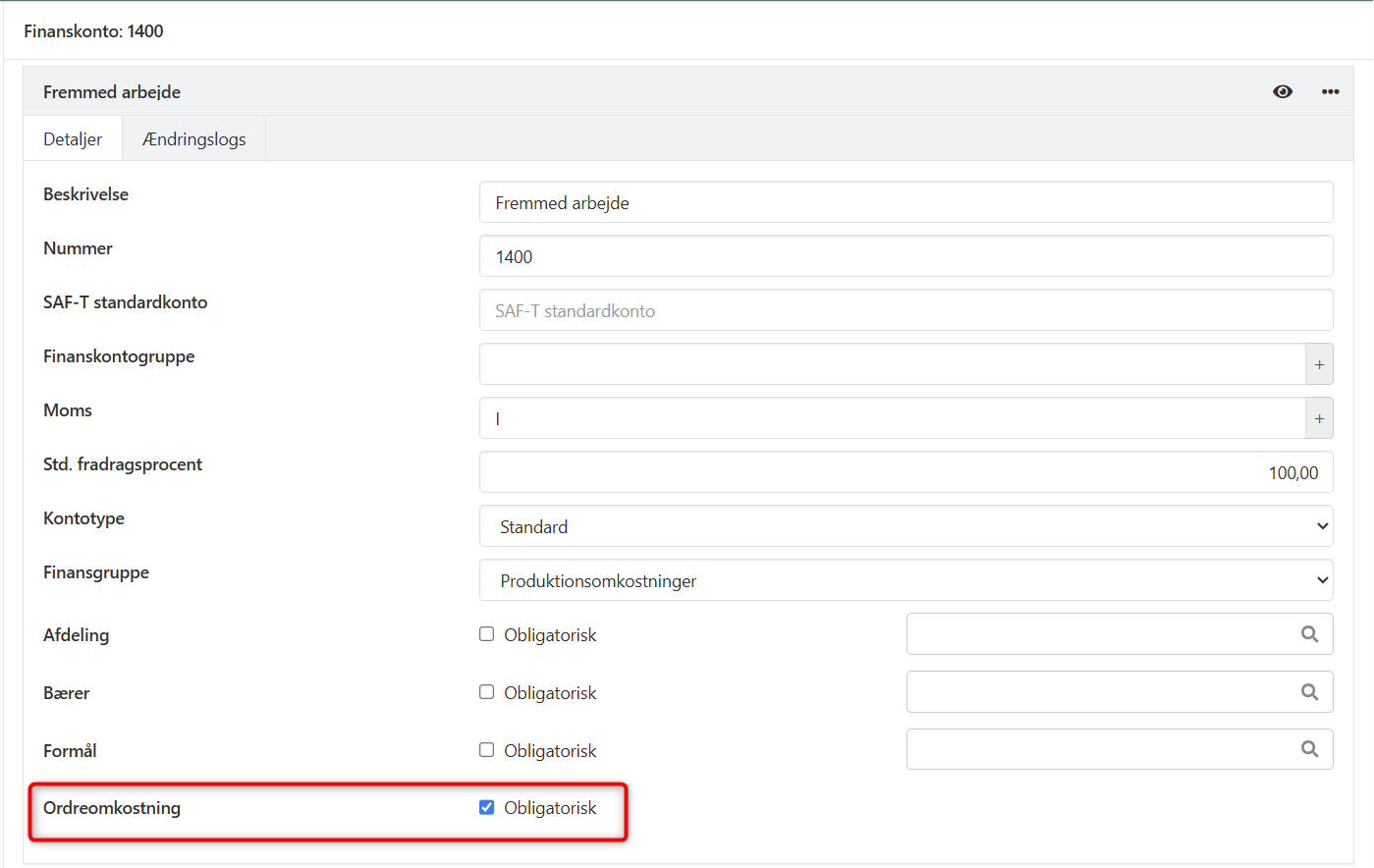
On both ledger accounts and article groups you can enable the setting Requires order cost posting. When enabled, the voucher must contain at least one order cost line. If it is missing, a warning is displayed and the voucher cannot be posted.
The setting is only visible in accounts where at least one project has been created.
Posting with dimensions
When you post via voucher registration or ledger entry, the system automatically suggests the dimension value set on the ledger account.
If the dimension value is not mandatory, the user can select a different value.
If the dimension value is mandatory, it cannot be changed.
If an incorrect mandatory value is selected, a warning is displayed at the bottom and the voucher cannot be posted.
It is possible to change a dimension value on a voucher even after it has been posted. This provides flexibility if a posting was incorrectly assigned to the wrong dimension.
➡️ See here how to change a dimension on a posted entry
Dimensions on orders
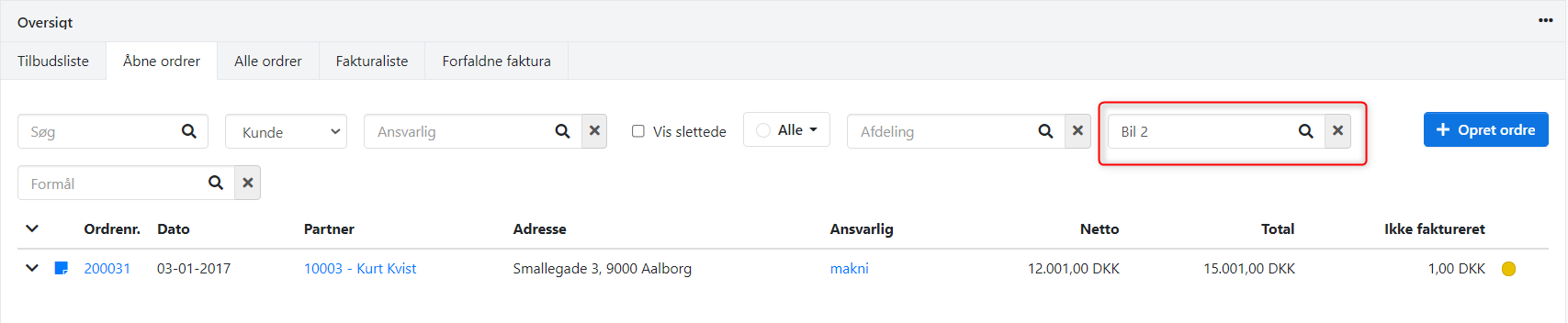
On orders and projects you can also select Department, Cost centre, or Purpose. Dimensions can be used for filtering in queries, reports, and overviews.

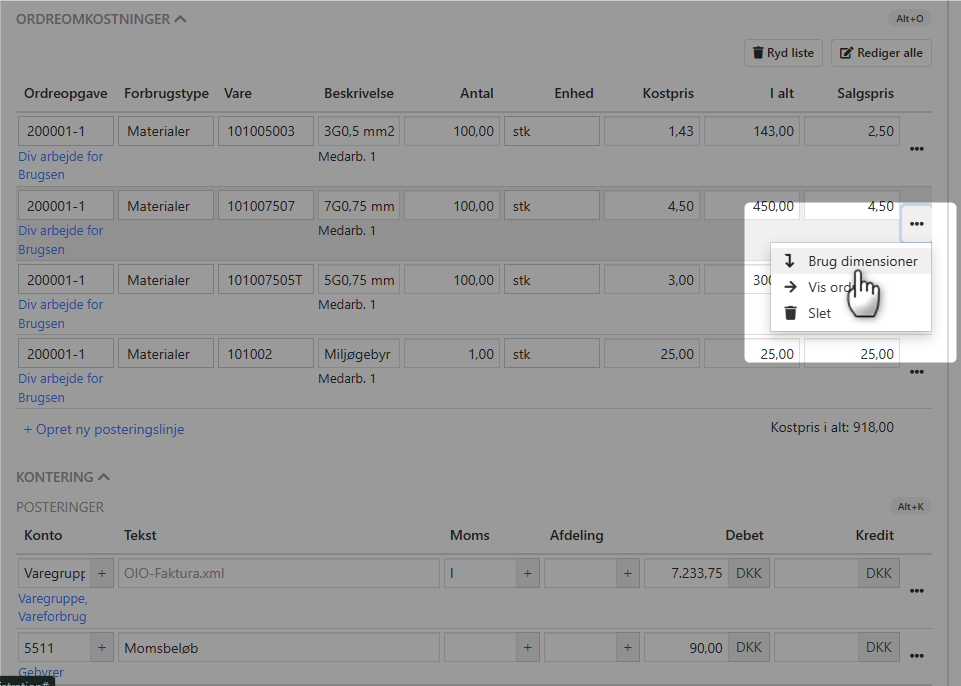
You can copy the dimension value from an order directly to the ledger account lines in voucher registration. In the menu for the line you want to copy dimensions from (the three dots), select Use dimensions.
Querying and reporting on dimensions
To view statistics on dimensions, select the menu Setup > Ledger setup > Dimensions. Click on a dimension value to see details and current account figures broken down by financial year.

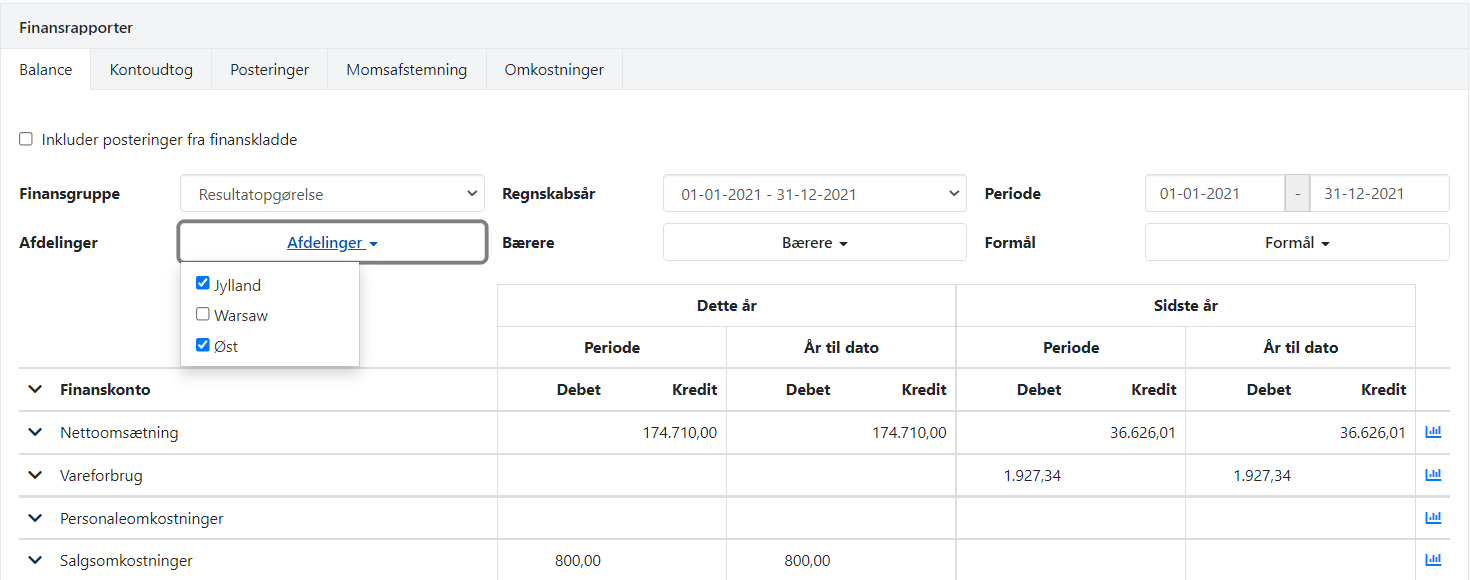
In ledger reports and the ledger summary you can filter on dimensions. The Balance report is special — here you can choose to view a combined balance for multiple selected values:
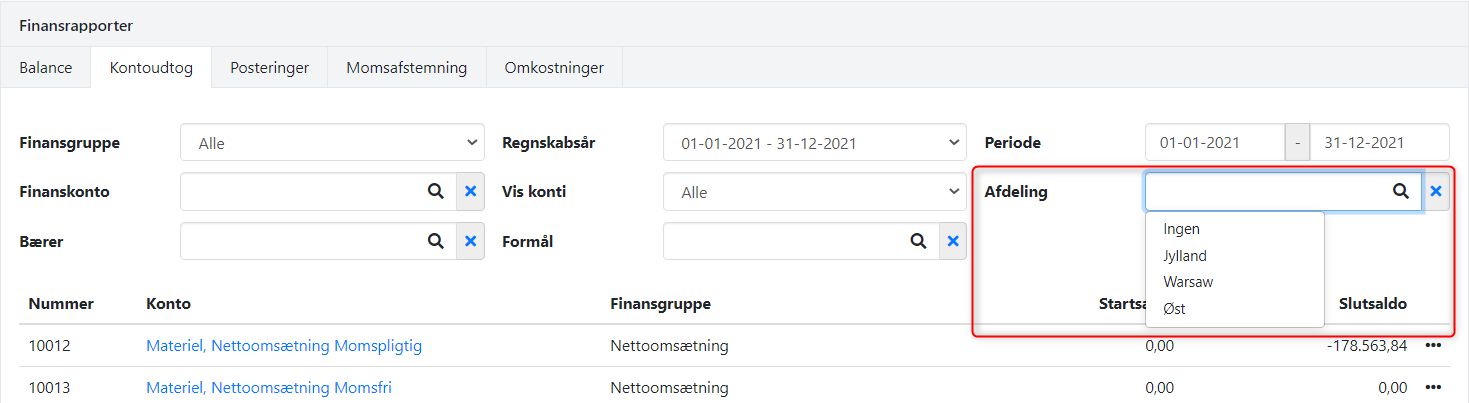
For the other ledger reports you can only filter on one dimension value at a time. If you select None in the filter, results are shown for postings without a dimension value.
On order and project overviews as well as in project reports you can also filter on dimensions. Here the filter is based on the dimension value selected on the order/project, not on the postings.
- Updated