Article reports
Overview of reports related to articles and/or the stock module
Please note that some of the reports (*) are only available if you have installed the Stock Management app from the Xena App Store.
➡️ Use the App Store
You can find all reports in the menu Reports > Stock and Articles. Below is a description of each report.
All reports can be printed, downloaded, or sent by email using the Report button at the bottom of the report.
Postings
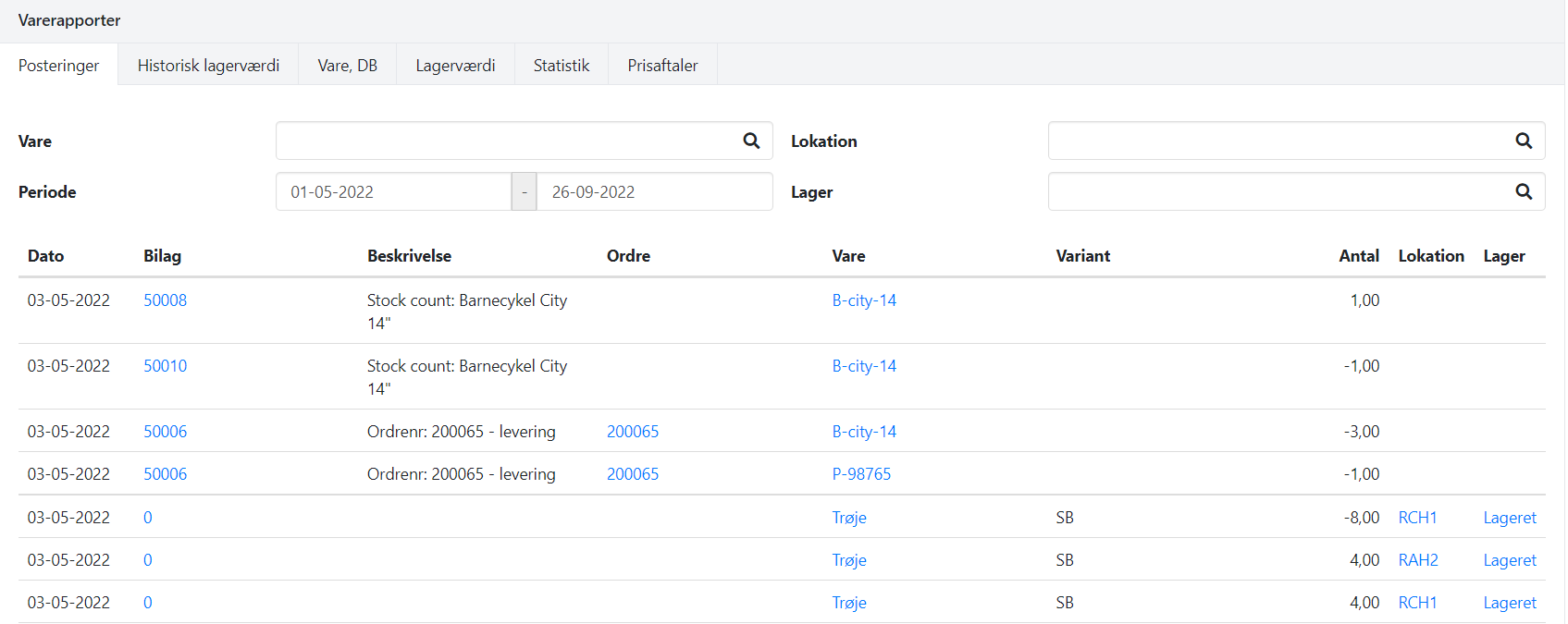
This report provides an overview of article transactions on your stock articles, including purchases, sales, and stock transfers. You can use filters at the top of the report, e.g. article number, to narrow down the results.
Historical stock value (*)
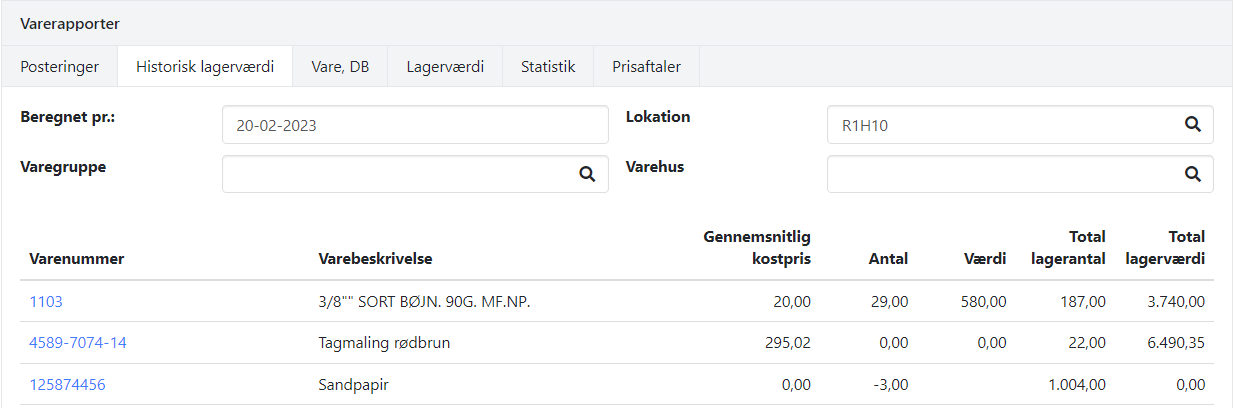
This report shows stock levels and stock value at a specific point in time. You must enter a statement date, and the report calculates the stock value based on the stock level on the specified date.
➡️ Read about managing stock value and stock levels
Average cost price = A calculated average value of the article, based on the posted stock value in the ledger module divided by the quantity in stock
Quantity = Quantity in stock. If you have selected a location and/or warehouse, the column shows the quantity in stock for the selected filter
Value = Posted stock value. If you have selected a location and/or warehouse, the column shows the posted stock value for the selected filter
Total stock quantity = Total quantity in stock on the entered date, regardless of which filter you have selected
Total stock value = Total posted stock value on the entered date, regardless of which filter you have selected
Article, GP
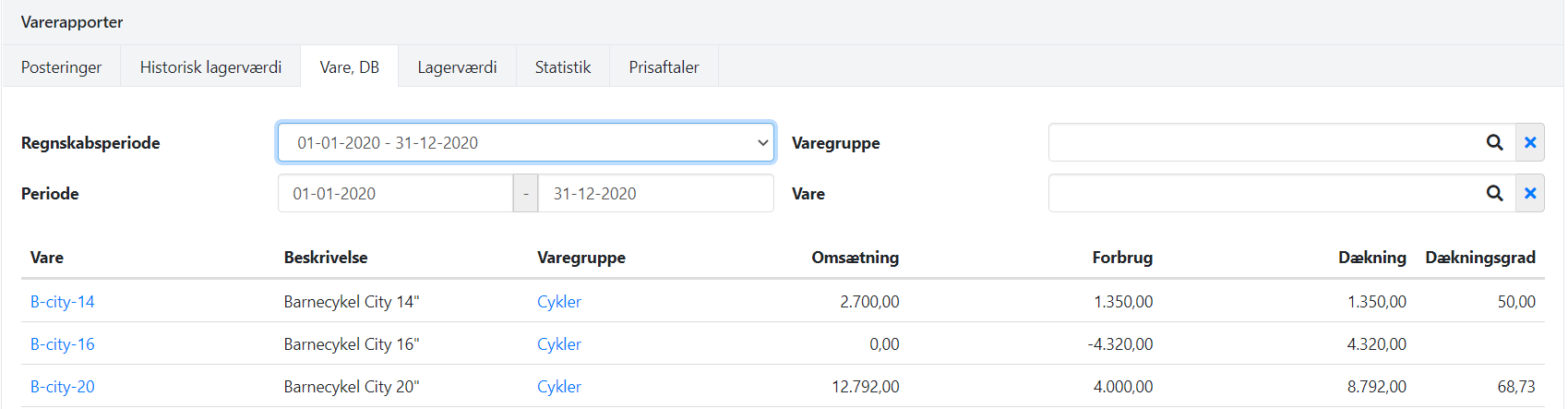
This report shows a gross profit statement for articles, including posted revenue, posted consumption, and gross margin percentage.
Stock value (*)
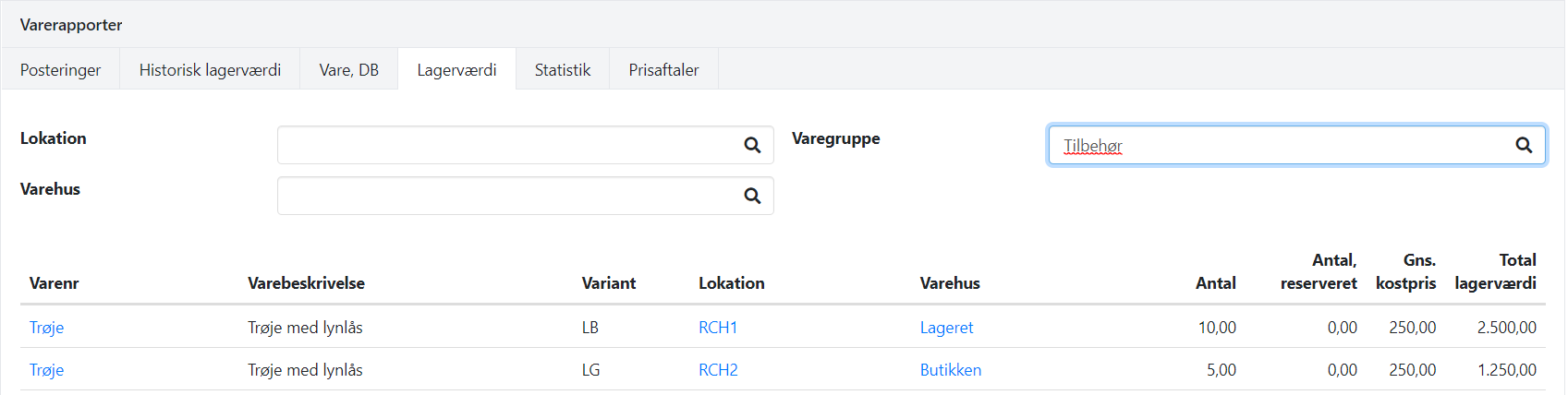
This report provides a snapshot of the stock value. It shows the stock value per article number, incl. variant, location, and warehouse. If you download the report to CSV, you can also see the article group for each article.
Statistics (*)
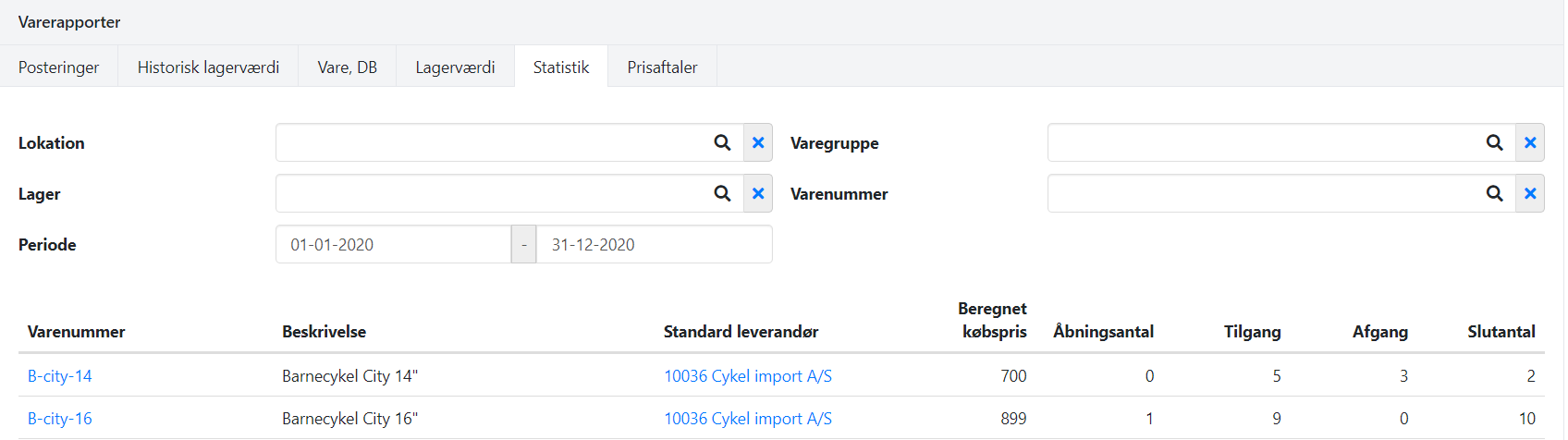
This report shows stock levels and movements for a specified period. The report also includes a calculated purchase price, if one exists for the article. If no calculated purchase price exists, the article's standard purchase price is shown.
Note: Only stocked articles are shown in the report.
Price agreements
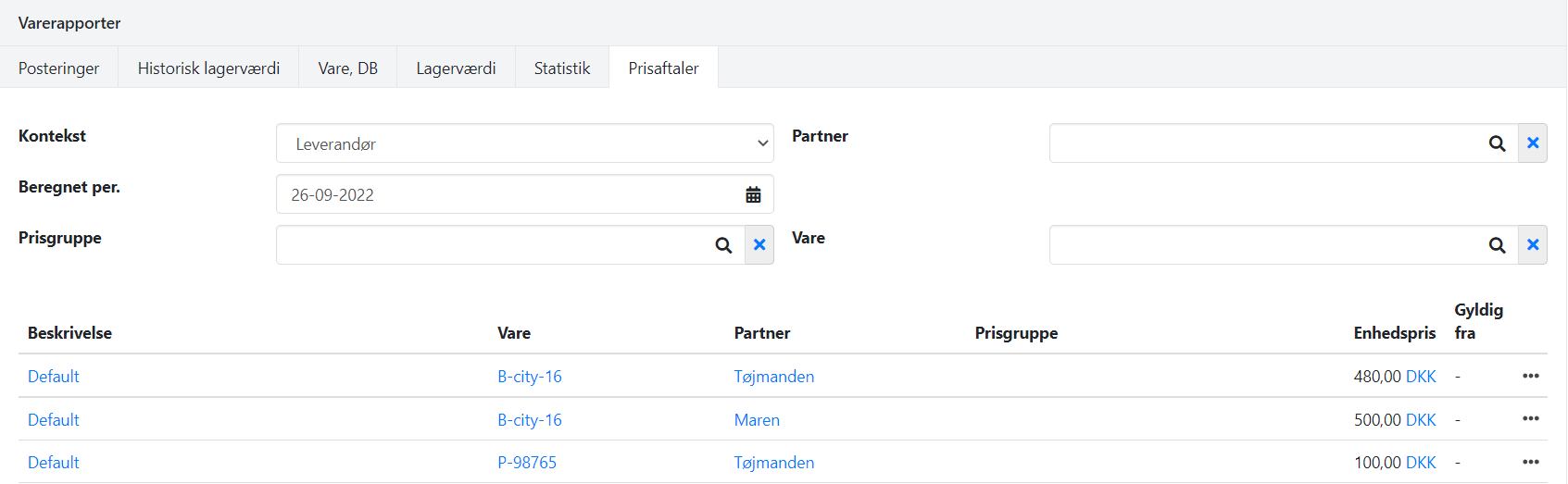
Here you can print the price agreements created on your articles — both prices linked to partners and price groups as well as your standard prices. The report is only shown if you have installed the free app Advanced Price Agreements.
- Updated