Date Selector and Fiscal Year
Take advantage of the opportunity to quickly enter and select dates. The date selector in Xena is super-efficient.
Fiscal Periods
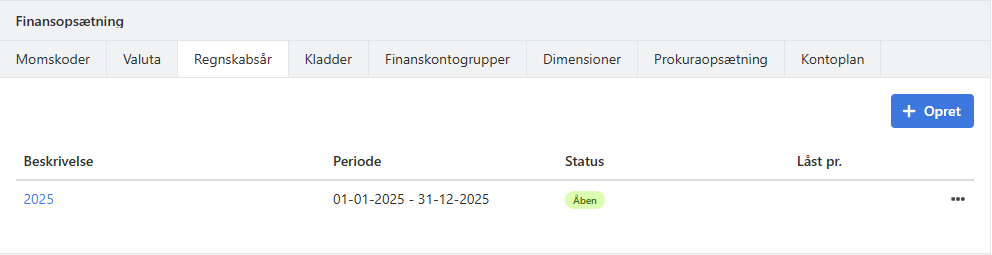
When you create a new fiscal year, a fiscal period is created with a start date of 01.xx.xx and an end date of 31.xx.xx. The period is typically named by the year, for example 2026 or 2025–26.
You can find thefiscal periods here:
- Setup > Ledger Setup > Fiscal Period, or
- Ledger> Primo postings
To create a new period, simply click Create.
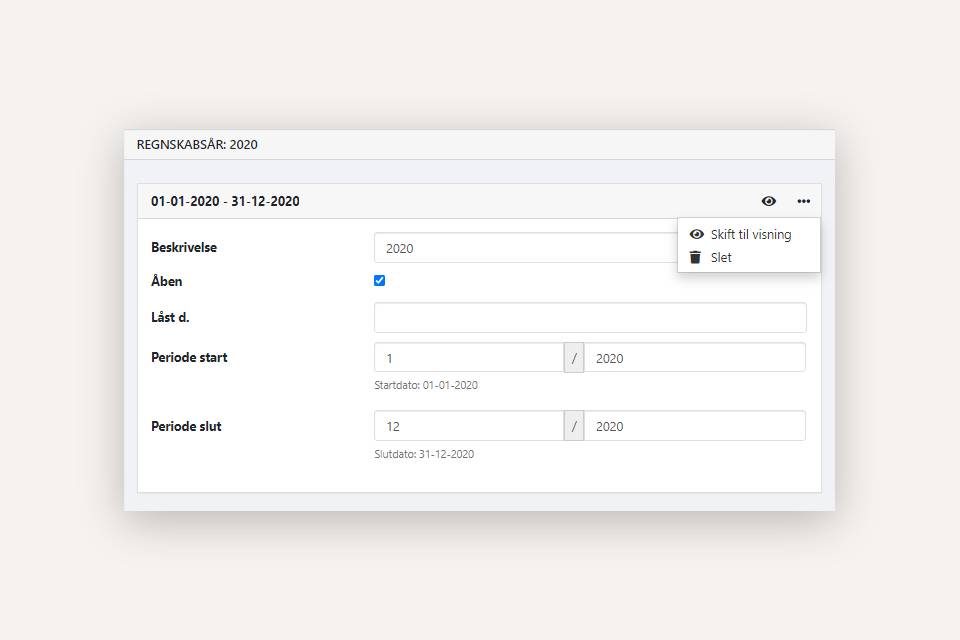
To edit an existing period:
- Open the fiscal year
- Click the edit icon at the top right
- Here you can change the description, start date and end date
- You can also delete the year from the menu, as long as nothing has been posted in the year and no opening balances have been calculated
Fiscal periods that do not follow the calendar year
It is possible to:
- create fiscal years that do not follow the calendar year
- create periods that are longer or shorter than 12 months
⚠️Important: Changes to the length or placement of periods must be made before you post anything in the periods, and before opening balances are calculated.
If you create a fiscal year that starts earlier than the first year you originally created in Xena, any opening figures must be deleted from the original first year. A fiscal year that is no longer the first must not contain opening figures.
Set Lock Date
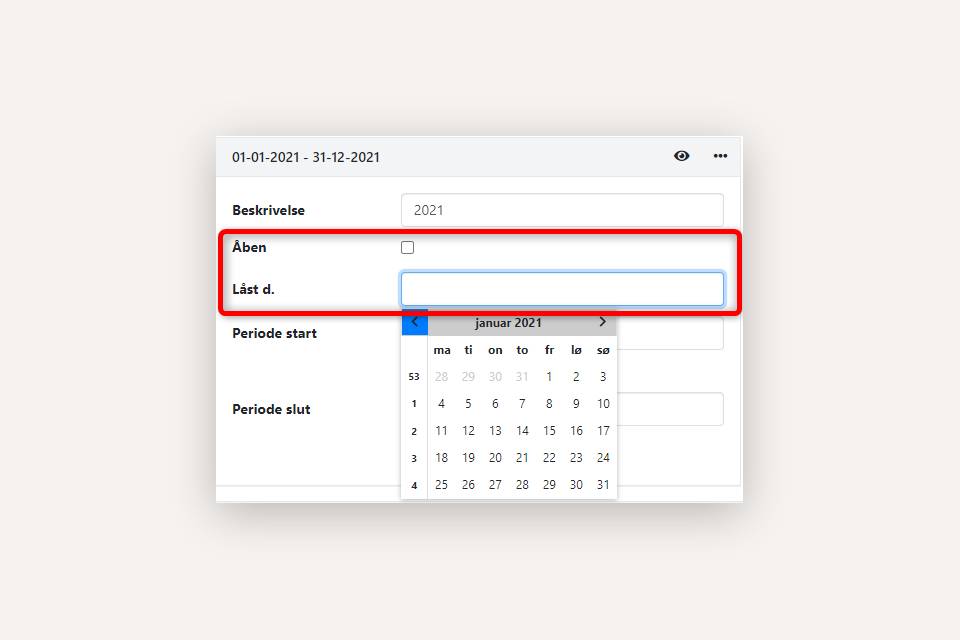
You can prevent posting before a specific date by entering the date in the Locked at field.
This is typically used after VAT settlement to avoid new postings in a settled period.
If you want to lock the entire fiscal year, remove the checkmark next to Open. You can always reopen the year by adding the checkmark again.
Read more about opening balances and accounting periods in the guides:
➡️ Opening Balances
➡️ Year-end Closing
Entering dates
You can of course select a date with the mouse – but it is much faster using the keyboard. Here are some useful shortcuts:
- "16" = the 16th of this month, this year
- "1602" = 16 February this year
- "160225" = 16 February 2025
- "d" = today’s date
Set System Date
When you log into Xena, the system date is automatically set to today’s date. This means the system operates based on the current date.
However, you can choose an alternative system date if you, for example:
- need to invoice or post in a specific period
- are working close to year-end or half-year closing
- want the system to behave “as if” it is a different date
The system date is changed at the top of the screen by clicking the calendar icon next to your company name.
- Updated